Introduction
iPhone users rely heavily on notifications to stay informed about messages, emails, and app alerts. These alerts are essential for staying connected and organized. However, when notifications don’t function as expected, it disrupts daily routines and important communications. This guide addresses common iPhone notification issues and provides clear, actionable solutions to restore their functionality.
Common iPhone Notification Issues
Several notification problems can arise on an iPhone, affecting a user’s ability to stay updated. Recognizing these common issues is the first step in resolving them effectively:
- Notifications not appearing: Sometimes, notifications do not show up on the lock screen or notification center, leaving users unaware of new updates.
- Delayed notifications: A delay in receiving notifications can cause disruptions, especially in time-sensitive scenarios.
- Sound alerts not working: Without sound alerts, users might miss important notifications, especially when not actively looking at their phones.
Addressing these issues requires a mix of basic and advanced troubleshooting steps, along with specific checks related to individual apps and system settings.
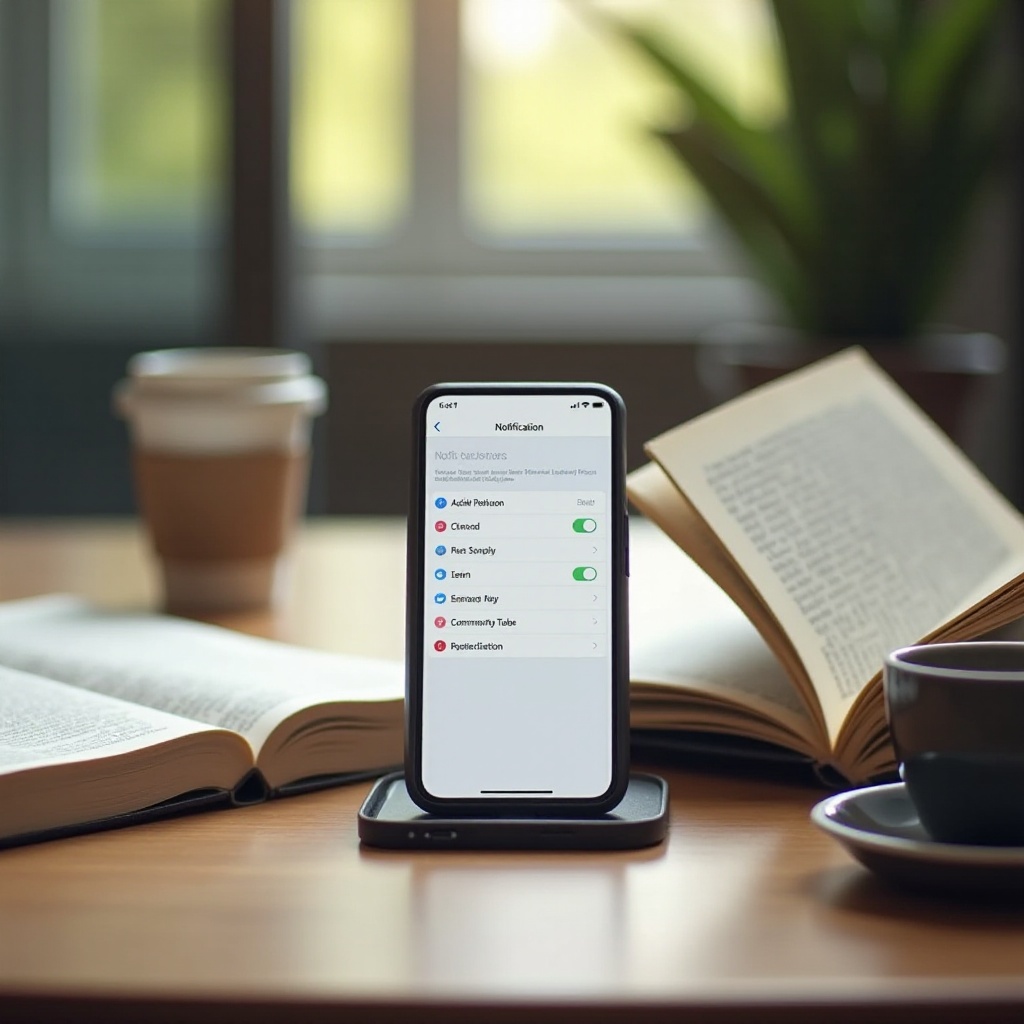
Basic Troubleshooting Steps
Begin with these basic troubleshooting steps to resolve iPhone notification problems:
- Check notification settings: Ensure notifications are enabled for each app in Settings > Notifications. Confirm all relevant options are turned on.
- Ensure Do Not Disturb is off: Check if Do Not Disturb is accidentally turned on, which can silence all notifications. Turn it off via Settings or Control Center.
- Restart your iPhone: A simple restart can often resolve minor glitches, helping reset notification behaviors.
If these basic steps don’t solve the issues, it’s time to explore more advanced solutions.
Advanced Solutions
For persistent notification issues, consider these advanced solutions:
- Update iOS software: Keeping your iOS software up-to-date ensures compatibility with all apps and access to bug fixes. Navigate to Settings > General > Software Update to check for updates.
- Reset all settings: This action resets settings like Wi-Fi, Bluetooth, and notifications without deleting data. Access this via Settings > General > Reset > Reset All Settings.
- Restore your iPhone: As a last resort, restore the iPhone to factory settings. Back up your data first, then go to Settings > General > Reset > Erase All Content and Settings.
These advanced solutions often rectify issues left unresolved by basic troubleshooting, particularly when system errors or outdated software are causing problems.
App-Specific Notification Troubleshooting
Sometimes, problems are isolated to specific apps rather than the iPhone system itself. For app-specific troubleshooting:
- Permissions review for individual apps: Access Settings and select the problematic app to ensure it has permission to send notifications.
- Reinstall problematic apps: Delete and reinstall apps where notifications fail to deliver, allowing a fresh installation to correct app-specific issues.
Completing these checks ensures that each app individually operates without hindrance, improving overall notification delivery.
Device and System Checks
Beyond app settings, device and system checks are crucial:
- Network connection issues: A stable internet connection is vital for receiving notifications. Verify your Wi-Fi or cellular network is operational.
- iCloud and syncing problems: iCloud syncing issues can affect notification delivery. Ensure you’re signed in with the correct Apple ID and check iCloud settings sync.
Monitoring these elements helps maintain consistent notification flows, preventing interruptions due to network or syncing problems.
Pro Tips for Maintaining Notification Health
Prevent future notification issues with these tips:
- Leverage Focus mode settings: Use Focus modes (such as Work or Sleep) to customize notification settings without turning them off entirely.
- Manage badge app icon notifications: Customize badge settings for apps to ensure notifications are visible, even if sound alerts are silenced.
By actively managing these settings, users can enjoy seamless alerts tailored to their needs and schedule.
Conclusion
Fixing iPhone notification issues involves a combination of basic checks, advanced troubleshooting, and ongoing system management. By applying these strategies, iPhone users can maintain consistent, reliable notifications, ensuring they never miss critical alerts or updates.
Frequently Asked Questions
Why are my iPhone notifications delayed?
Delayed notifications can result from poor network connectivity or background app refresh issues. Ensure a stable internet connection and enable background app refresh in Settings.
How can I enable notifications for specific apps?
Navigate to Settings > Notifications, select the app, and toggle notifications on. Ensure all desired notification types are activated.
What should I do if notifications still don’t work after troubleshooting?
If issues persist, contact Apple Support for assistance. Hardware issues or more complex software problems may require expert intervention.