Introduction
Changing the name of your Alexa device not only adds a personal touch but also enhances functionality, especially if you have multiple devices at home. Unique names for each device ensure commands are directed where intended, eliminating confusion and improving user interaction. This guide provides all the necessary steps to seamlessly change the name of your Alexa device and offers valuable tips for maximizing your Alexa experience.
Why Change Your Alexa’s Device Name?
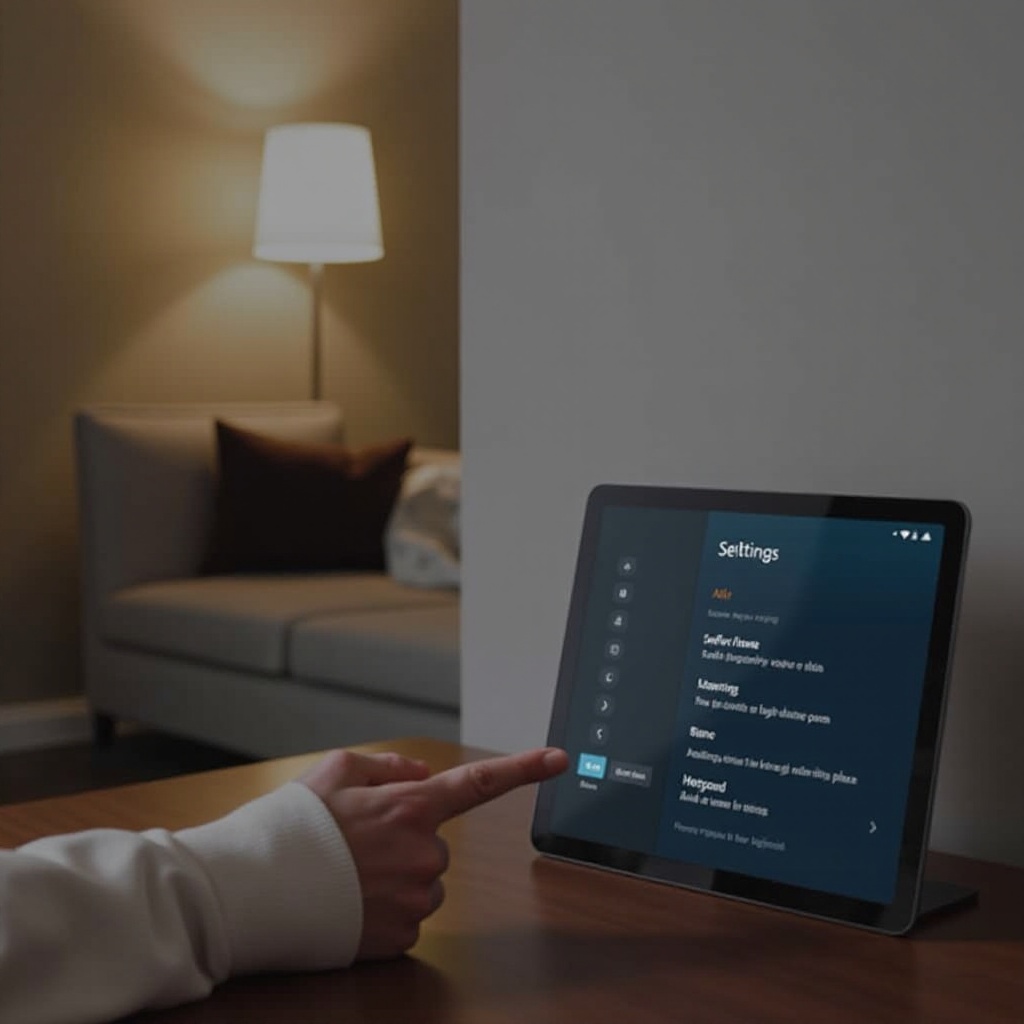
Renaming your Alexa device has practical benefits. In a home with multiple Echo devices, assigning names based on location, such as ‘Living Room Echo’ or ‘Kitchen Echo’, makes voice control more intuitive. It also facilitates easier management within the app, giving clarity to your setup.
Having recognized these benefits, it’s important to properly prepare your device, as we’ll discuss in the following section.
Preparing to Change Your Alexa Device Name
Preparation is key to a hassle-free name change process. Follow these steps:
- Check Device Compatibility: Most recent Alexa devices support name changes. Verify your model allows it.
- Update the Alexa App: Ensure your app is updated to the latest version to access all features.
- Stable Internet Connection: Confirm that your Wi-Fi connection is reliable for the Alexa app to communicate effectively with your device.
With preparations complete, it’s time to proceed with the step-by-step guide to rename your Alexa device.
Step-by-Step Guide to Changing Your Alexa Device Name
Follow these detailed steps to rename your Alexa device:
- Access Device Settings:
- Open the Alexa app on your smartphone.
- Tap on ‘Devices’ at the bottom of the screen.
-
Select ‘Echo & Alexa’ to see your list of devices.
-
Edit Your Device Name:
- Choose the specific device you wish to rename.
- Tap ‘Edit Name’ or access ‘Device Settings’.
-
Enter the new name you desire for your device.
-
Save and Confirm Changes:
- After entering the new name, tap ‘Save’.
- Ensure the changes reflect in your app by revisiting the device list.
If any difficulties arise, don’t worry. Our next section covers troubleshooting common issues you might encounter during this process.
Troubleshooting Common Issues
Even though the process is straightforward, you might face some issues:
- Syncing Problems:
-
Ensure a stable internet connection. Restart the Alexa app and your router if needed.
-
Name Change Failures:
- Double-check for app updates. Retry the process after a short break to allow for app sync.
Once you overcome these challenges, you can delve into further personalizing your Alexa experience, as outlined in the next section.
Tips for Personalizing Your Alexa Experience
After successfully renaming your device, enhance your Alexa experience with these personalization tips:
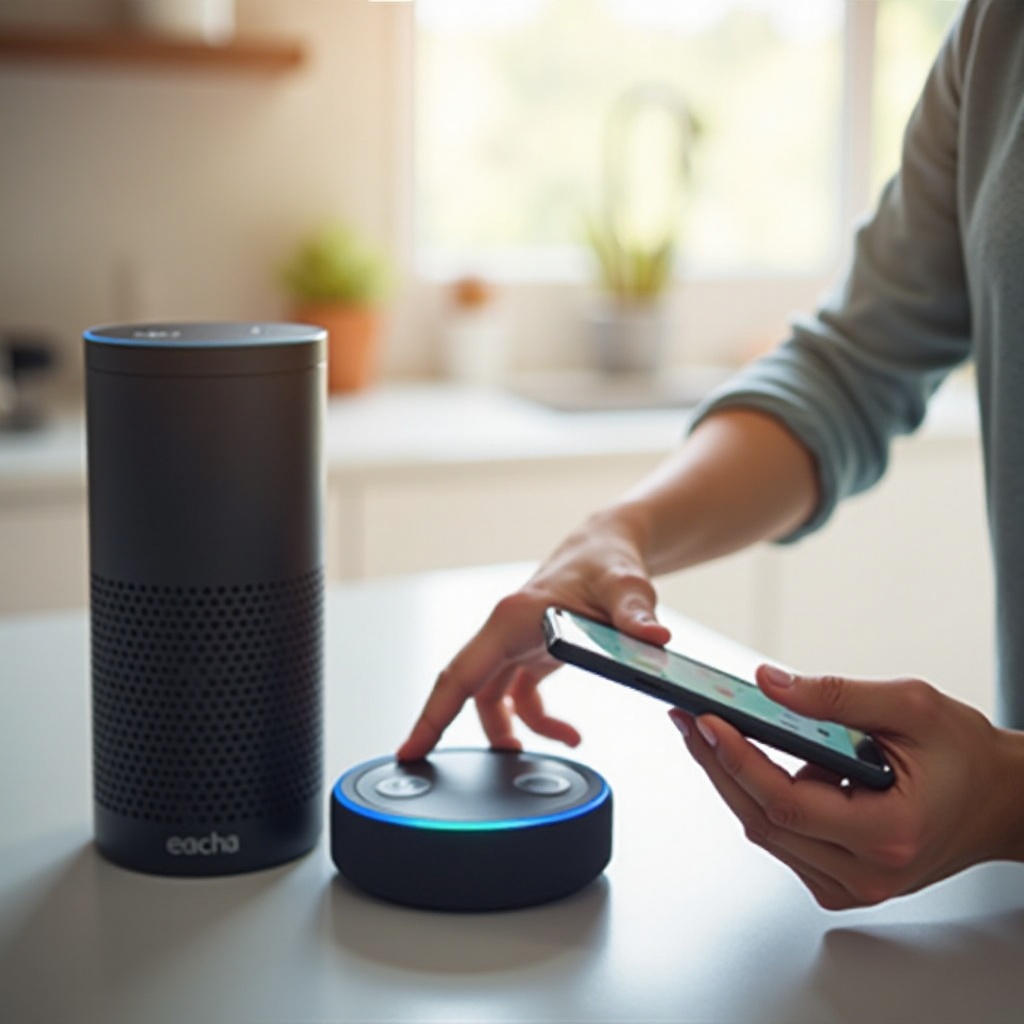
- Unique Names for Multiple Devices: Label each device by its location or purpose, such as ‘Bedroom Alexa’ or ‘Office Echo’, for precise communication.
- Alexa Skills and Routines: Set up routines to automate daily tasks like controlling lights or playing music based on specific triggers.
- Voice Profiles for Enhanced Interaction: Create individual voice profiles for each household member to allow personalized responses and improved voice recognition.
With these personalizations, you can considerably enrich your Alexa’s utility, making everyday interactions more efficient and tailored to your lifestyle.
Conclusion
Changing the name on your Alexa device is a simple and effective way to optimize your smart speaker’s functionality. By following the steps and tips outlined in this guide, you can ensure a smooth and beneficial experience. Enjoy the enhanced organization and personal touch your renamed devices offer.
Frequently Asked Questions
How often can I change the name of my Alexa device?
You can change your Alexa device name as frequently as desired, but ensure you update any routines or settings linked to its previous name.
Can I use special characters or numbers in my Alexa device name?
Yes, special characters and numbers can be used. However, keep the names simple for effective voice recognition.
Will changing the device name affect the existing routines?
Yes, changing the device name might require adjustments to existing routines. Be sure to update these to reflect the new name.