Introduction
Integrating your TV with Alexa can change the way you experience entertainment, making it more convenient and hands-free. This guide details the steps to connect your TV to Alexa, ensuring an enhanced smart home environment.
Understanding Compatibility
Before connecting your TV to Alexa, confirm if your TV is compatible with Alexa technology. Many recent models from major brands such as Samsung, LG, and Sony come with built-in support. If you’re unsure, check the specifications on the manufacturer’s website or consult the user manual. For those with older TV models, external devices like the Amazon Fire TV Stick or a Roku might be necessary to bridge the gap.
Preparing for the Connection
To start, you’ll need a compatible TV, a stable internet connection, and the Amazon Alexa app on your smartphone or tablet. Follow these initial steps:
1. Download and open the Alexa app from the App Store (iOS) or Google Play Store (Android).
2. Log in with your existing Amazon account or create one if necessary.
3. Ensure that Alexa and your TV are connected to the same Wi-Fi network. This setup is crucial for a successful connection.
Connecting Your TV to Alexa
The connection process varies depending on whether you have a smart TV or are using an external device.
- Direct Connection for Smart TVs:
- Open the Alexa app on your phone.
- Tap ‘Devices’ at the bottom right.
- Click the ‘+’ icon and select ‘Add Device.
- Choose ‘TV’ and follow the instructions to complete the connection.
-
Test Alexa by saying commands like ‘Alexa, turn on the TV’ to verify the setup.
-
Using a Fire TV Stick or Roku:
For those needing an external device: - Connect the Fire TV Stick to your TV and follow the setup prompts.
- Open the Alexa app, navigate to ‘Devices,’ and follow instructions to add the Fire TV Stick.
Enabling HDMI-CEC for Connection
HDMI-CEC (Consumer Electronics Control) allows devices to communicate through your TV’s HDMI ports. Here’s how to enable it:
1. Access the TV settings.
2. Navigate to the ‘HDMI’ section and enable CEC. It might be called ‘Anynet+’ or ‘Bravia Sync’ depending on your TV brand.
3. Once enabled, use Alexa commands to control your TV seamlessly.
Connecting through Fire TV or Roku
If using an external device like Roku, connect it to your TV and complete its initial setup. In the Alexa app, search for and enable the corresponding skill, such as ‘Roku,’ to integrate it with Alexa.
Customizing Alexa Commands
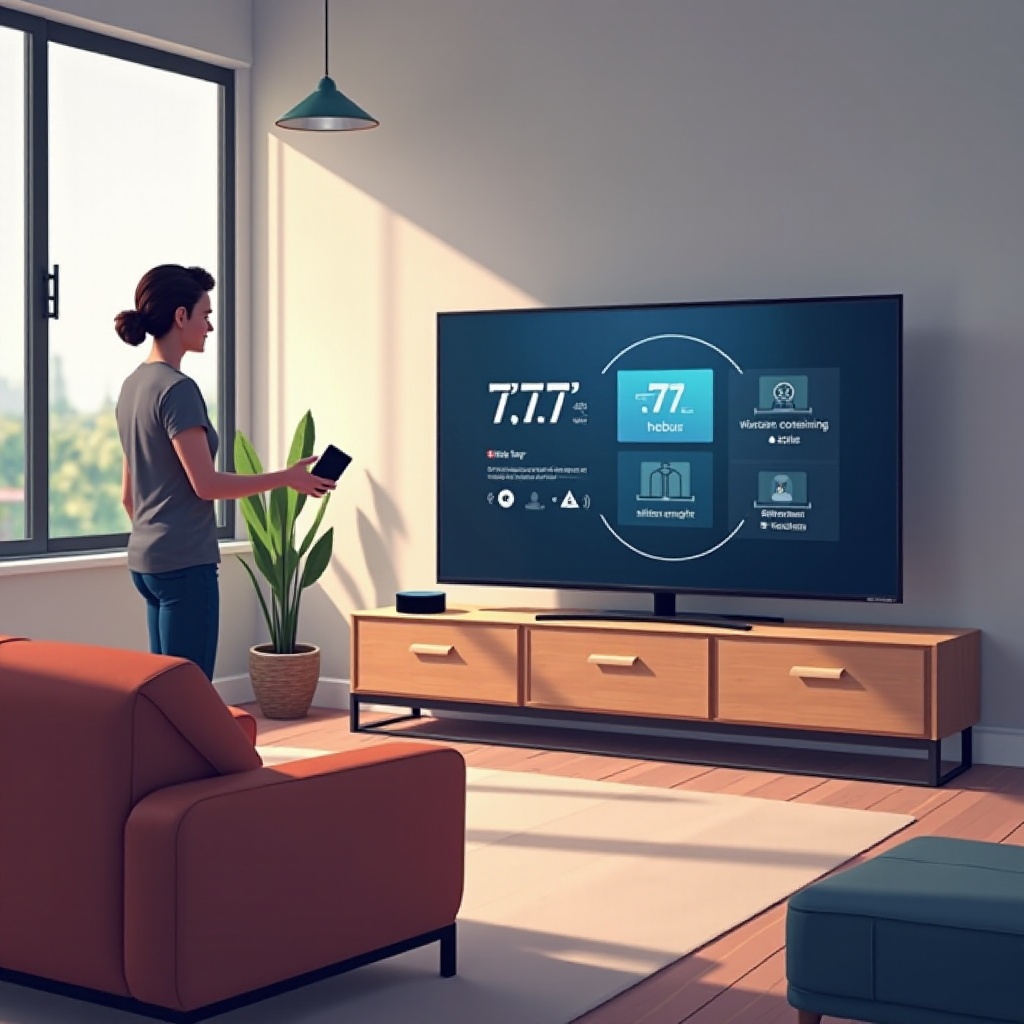
With your TV now connected to Alexa, personalize your commands for a smoother viewing experience. This includes creating routines in the Alexa app:
– Navigate to ‘Routines’ under settings.
– Set custom voice commands and responses for specific actions, such as launching a streaming service or playing a particular channel.
Enabling and Managing Alexa Skills
To maximize the potential of Alexa with your TV, manage skills via the app:
1. Tap ‘More’ in the Alexa app and navigate to ‘Skills & Games.
2. Search for TV-specific skills like those for Samsung or LG, and enable them.
3. Customize settings within each skill to better suit your viewing habits.
Keeping these skills updated ensures your setup always yields the best performance.
Troubleshooting Common Issues
Experience occasional hiccups? Try these solutions:
– Connectivity Problems: Ensure both your Alexa device and TV are on the same network. Restart your router if necessary.
– Alexa Unresponsive: Update the Alexa app to the latest version and make sure your devices are linked properly.
If issues continue, refer to the manufacturer’s support for more detailed help.
Conclusion
By following this guide, you can effortlessly integrate Alexa with your TV, transforming your home entertainment. Enjoy voice-controlled convenience and expand your smart home setup.
Frequently Asked Questions
What TVs are compatible with Alexa?
Many modern TVs from brands like Samsung, Sony, and LG are compatible with Alexa. Check the product specifications for Alexa support.
Can Alexa control my TV volume?
Yes, once set up, you can use voice commands such as ‘Alexa, turn up the volume’ to adjust the sound.
What should I do if Alexa doesn’t recognize my TV?
Ensure that both devices are on the same Wi-Fi network and double-check your connection settings. Reinstalling the Alexa app might help.