Introduction
Webcams have become indispensable tools in our daily activities, facilitating communication, streaming, and content creation. Optimizing your webcam settings in Windows 10 can significantly enhance your video quality, presenting you in the best light possible during online interactions. This guide will walk you through accessing and configuring these settings to achieve superior performance, helping you to make the most out of your webcam for any video call or recording session.
Accessing and Understanding Webcam Settings in Windows 10
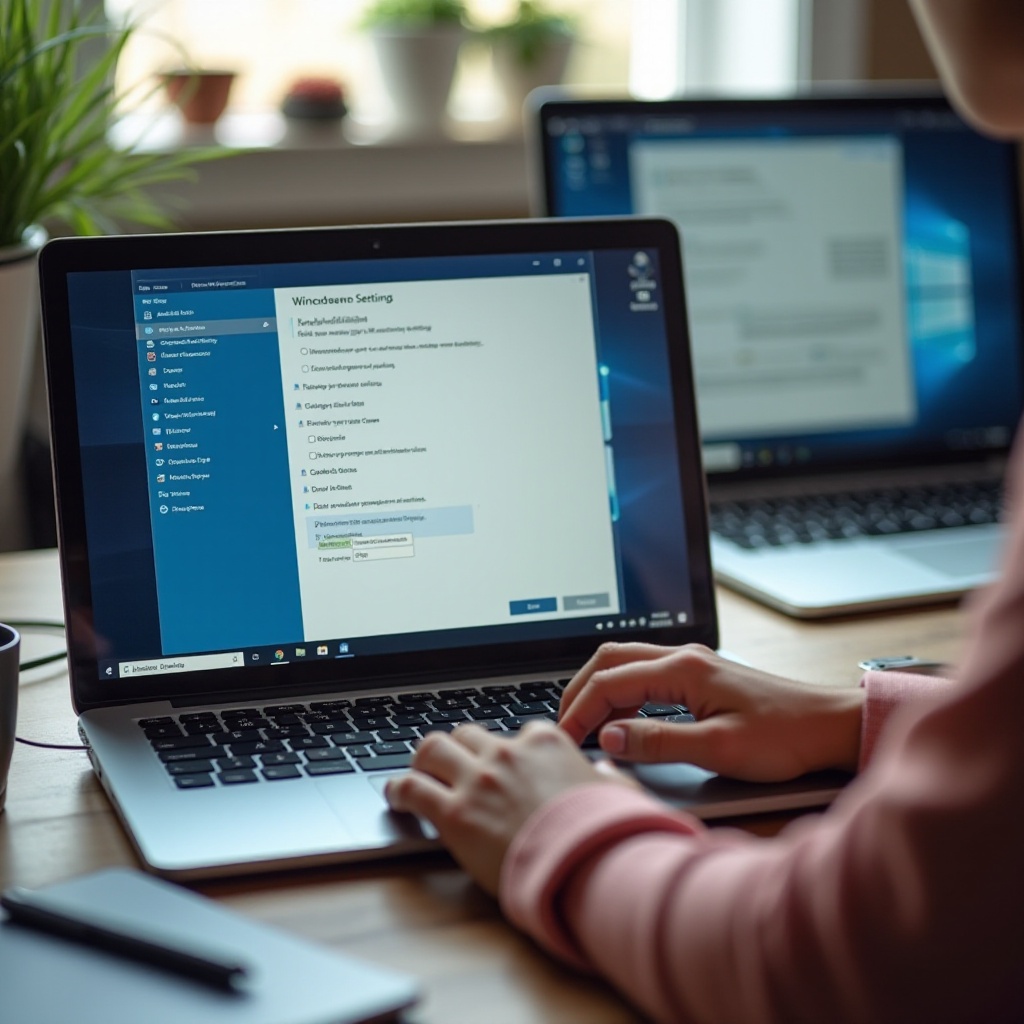
Understanding how to navigate and adjust your webcam settings is crucial for achieving the best video quality. Let’s start with accessing the settings on your Windows 10 PC.
– Navigating to Webcam Settings
1. Open the Start Menu and go to ‘Settings.
2. Click on ‘Privacy,’ then proceed to ‘Camera.
3. Check that the toggle for ‘Allow apps to access your camera’ is turned on.
4. Select which apps are permitted to use your webcam.
– Understanding Basic Webcam Parameters
Familiarize yourself with essential settings like brightness, contrast, and resolution. These adjustments can often be accessed through the built-in camera app or third-party software. Each setting impacts the image quality, influencing how well you appear during video calls or recordings.

Adjusting Basic Webcam Settings for Improved Quality
Once you’ve found your settings, making small tweaks can lead to significant improvements in video quality.
– Resolution and Aspect Ratio Settings
Ensure your webcam is set to the highest possible resolution, typically adjusted in the camera app or associated software. Higher resolutions yield clearer images. Opt for 16:9 aspect ratio for compatibility with most video services.
– Adjusting Brightness and Contrast
Balancing brightness and contrast can greatly enhance clarity. Increase brightness in dim environments and adjust contrast to differentiate between shades, preventing washed-out images and ensuring you look your best during video calls.
Leveraging Advanced Webcam Features
For those looking to maximize their webcam’s potential, delving into more advanced settings can provide significant benefits.
– Managing Frame Rate and Stability
Adjusting the frame rate can lead to smoother video, especially during fast movements. A standard frame rate of 30fps is typically sufficient, but experimenting with higher rates can result in even smoother interactions.
– Utilizing Color Correction and Filters
Many applications offer color correction settings and artistic filters. Use these to adjust warmth and tint, ensuring natural skin tones and enhancing the overall aesthetic of your video.
– Configuring Auto-Focus Effectively
Test and enable the auto-focus feature to maintain a sharp image, assessing its responsiveness during use. If it ‘hunts’ excessively, consider switching to manual focus to achieve better results.
Troubleshooting Common Webcam Issues
Challenges arise even with optimal settings. Knowing how to address common technical issues ensures smooth webcam performance.
– Addressing Webcam Connectivity Problems
Ensure your webcam is securely connected and recognized by checking connection points and permissions in privacy settings. If it fails to connect, update your camera drivers through ‘Device Manager’ by right-clicking the device and selecting ‘Update driver.’ Restart your system if problems persist.
– Improving Low Image Quality
Poor video quality often results from slow internet speeds or a dirty lens. Clean your webcam’s lens to remove any dust or fingerprints, and check your internet connection for potential issues. A stable, high-speed internet connection significantly enhances webcam performance.
Enhancing Webcam Performance with Third-Party Tools
For increased functionality, third-party tools offer extensive capabilities beyond basic settings.
– Recommended Software for Video Enhancement
1. ManyCam: Adds effects and streaming tools to enhance your video output.
2. OBS Studio: Provides extensive customization options for power users.
3. CyberLink YouCam: Offers filters and presentation features for business settings.
– Integrating Third-Party Tools with Windows 10
Download these tools from their official websites, following installation instructions carefully. Integrate them with applications like Zoom or Skype to unlock additional webcam control and features, ensuring your setup is both powerful and user-friendly.
Best Practices for Professional Webcam Use
Beyond technical adjustments, a professional appearance matters during online interactions. Here are best practices to ensure effective and professional webcam use.
– Optimal Webcam Placement and Setup
Position your webcam at eye level to minimize distractions and provide a direct line of sight. Use a tripod or laptop stand to maintain the best angle, and ensure your background is tidy, projecting a professional image.
– Maintaining a Professional Appearance on Video
Wear solid colors to avoid visual distractions. Manage your lighting effectively by positioning a lamp or utilizing daylight to adequately illuminate your face, avoiding harsh backlighting that can obscure your features.
Conclusion
Optimizing your webcam settings in Windows 10 is a vital step in improving video call quality and maintaining professional interactions. By applying these adjustments and practicing best use techniques, you’re equipped to present yourself in the best light during every online meeting or recording session.
Frequently Asked Questions
How can I make my webcam quality better on Windows 10?
Ensure optimal settings are applied for high resolution and good lighting. Adjust software settings for resolution and frame rate, and use external lighting if necessary.
Why is my webcam not working on Windows 10?
Check connectivity and camera permissions in the privacy settings. Update your drivers via the Device Manager and restart the system to resolve potential conflicts.
Which third-party software is best for webcam settings in Windows 10?
ManyCam, OBS Studio, and CyberLink YouCam are recommended for enhanced usability and creative control over your webcam’s output.