Introduction
Yes, you can run Zoom meetings on a Chromebook, and you can also zoom your screen for easier reading. This guide clears up both meanings so you know exactly what to do. First, you will learn how to use Zoom video meetings on ChromeOS with the recommended Zoom for Chrome PWA and the browser-based web client. Then you will see how to install the app, join meetings, host sessions, and schedule events.
If your Chromebook is school- or work-managed, you will find the right steps and policies to check. You will also get performance tips, privacy essentials, and fast fixes for common glitches. Finally, you will learn how to zoom in and out on pages and across your screen using built-in ChromeOS tools. With that context, let us answer the key question and define what people mean when they say: can you zoom on a Chromebook.
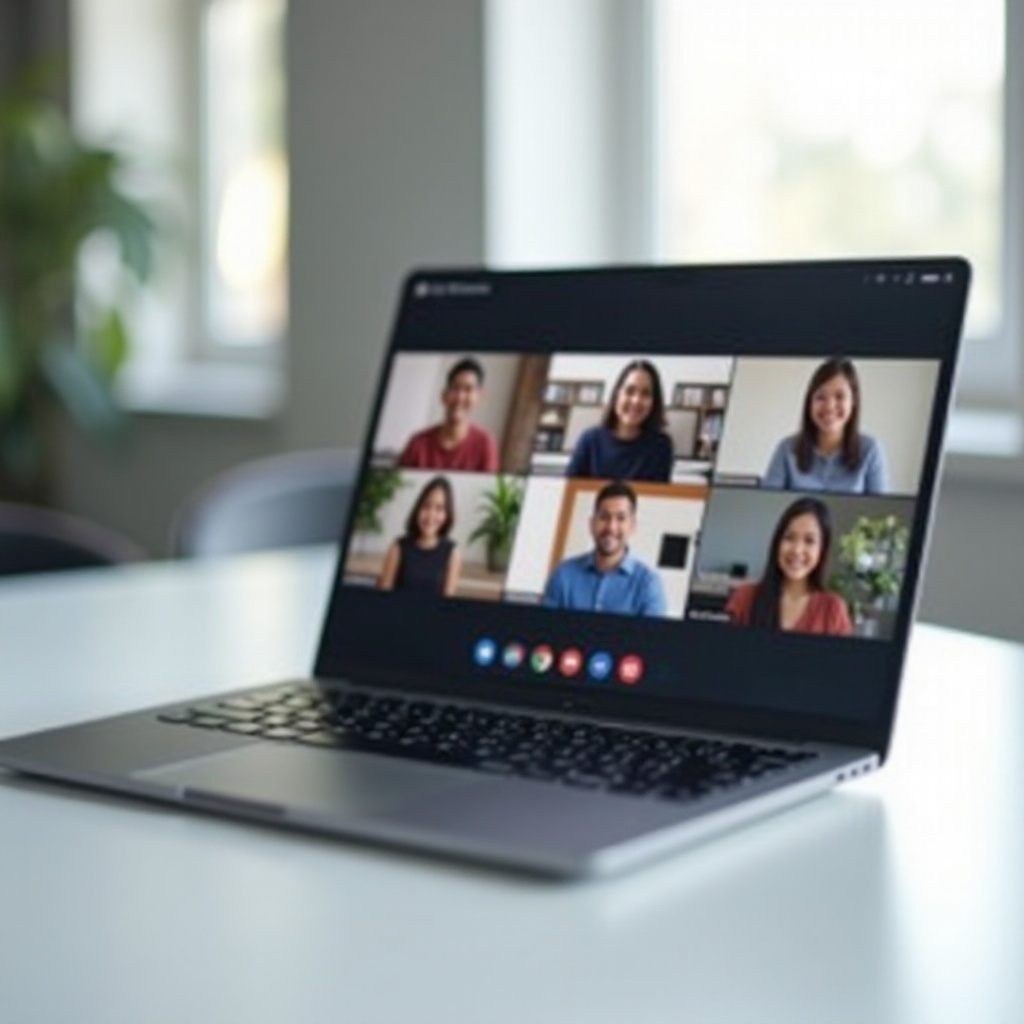
Quick Answer: Yes—Here’s What ‘Zoom on a Chromebook’ Means
When someone asks can you zoom on a Chromebook, they usually mean two things. First, can you use the Zoom video meeting app? Yes. You can install the Zoom for Chrome PWA, use the Zoom web client in your browser, or, on some devices, install the Android app. Second, can you zoom in and out on your screen? Yes. ChromeOS supports page zoom in Chrome, system display scaling, and accessibility magnifiers.
This article covers both use cases. You will get fast options for joining meetings and clear steps to enlarge content on your screen without breaking layouts. Before you choose a method, confirm your device meets basic requirements to run Zoom smoothly.
Compatibility and Requirements for Zoom on ChromeOS
Before you install Zoom, make sure your Chromebook meets basic requirements. Zoom runs best on current ChromeOS builds with the latest Chrome browser. Keep your device updated for new features and security patches.
Key requirements and tips:
– ChromeOS: Update to the latest version via Settings > About ChromeOS.
– Hardware: Built-in or external webcam, microphone, and speakers or a headset.
– Storage: Enough space to install the PWA and cache temporary files.
– Network: Stable broadband. Aim for at least 2 Mbps up and down for 720p video; more for larger meetings or screen shares.
– Account: You can join meetings without an account, but hosting and cloud recording require a Zoom account. Certain features require paid plans.
– Admin policies: On managed Chromebooks, your admin may control app installs and permissions. Check with IT if you cannot install the PWA or share your screen.
With requirements confirmed and updates applied, you can choose the best way to run Zoom on your Chromebook.
Three Ways to Use Zoom on a Chromebook
You have three practical paths to start a Zoom call on ChromeOS. The Zoom for Chrome PWA offers the most ChromeOS-friendly experience, the browser-only web client works without installing anything, and the Android app delivers a mobile-style interface on supported devices. Pick the method that fits your device and your organization’s policies.
Zoom for Chrome PWA
The Zoom for Chrome PWA is the recommended option for most users. It installs like an app, opens in its own window, and supports core Zoom features. Because it is a Progressive Web App, it updates quickly and integrates tightly with ChromeOS permissions, notifications, and screen sharing. Most schools and businesses prefer it for consistency and manageability.
Zoom Web Client in the Browser
The web client runs entirely in your browser. You join a meeting from a link and use Zoom without installing anything. It is perfect when you are on a locked-down device or a shared Chromebook. Some advanced features may be limited, but for joining and participating in meetings, the web client works well and is the fastest way to get started.
Zoom Android App
Some Chromebooks support Android apps from the Google Play Store. You can install the Zoom Android app on those devices. It offers a mobile interface and may lack some desktop-like controls. Many organizations prefer the PWA over the Android app for ChromeOS. If you use the Android app, ensure it has camera and microphone access and that your device supports it.
Once you pick a path, the next step is to install and configure the Zoom for Chrome PWA, since it delivers the most consistent experience on ChromeOS.
Install and Set Up Zoom for Chrome PWA (Step-by-Step)
You are ready to install. The PWA gives you a stable, ChromeOS-optimized Zoom app with reliable screen sharing and device controls. Follow these steps to install, sign in, and grant permissions so you are ready to join or host meetings.
Install the PWA and Pin It to the Shelf
1) Open Chrome and go to zoom.us/download.
2) Under ‘Zoom for Chrome – PWA’, click Install.
3) When the app window opens, confirm the install prompt.
4) To pin it: right-click (two-finger tap) the Zoom icon on your shelf and select Pin.
5) Optional: In Chrome, you can also select ‘Install app’ from the address bar if you opened Zoom in a tab.
Sign In and Configure Audio/Video
1) Launch Zoom and click Sign In.
2) Pick your method: Email and password, Google, or SSO.
3) Open Settings (gear icon).
4) Audio: Choose your microphone and speakers or headset. Test your devices and adjust volume.
5) Video: Select your camera and check framing. Use natural light or a lamp in front of you.
6) Effects: Try blur or background images. If your Chromebook is low-powered, turn off background effects and HD video to reduce CPU load.
Grant Camera, Mic, Notifications, and Screen Share Permissions
- Camera and microphone: When Chrome prompts, click Allow. Manage later via Chrome > lock icon > Site settings.
- Notifications: Enable notifications so you see meeting reminders and chat messages.
- Screen sharing: The first time you share, Chrome asks for permission. Allow screen capture, and choose Entire Screen, a Window, or a Tab. When sharing a tab with audio, enable ‘Share tab audio’.
With the app configured and permissions granted, you can join, host, and schedule meetings with confidence.
Join, Host, and Schedule Zoom Meetings on a Chromebook
With the PWA set up, it is time to run meetings. You can join in seconds, host a session with basic controls, and connect Zoom to your calendar for seamless scheduling. The steps below help you move from attendee to host without missing a beat.
Join via Link, ID, or Calendar
- Join link: Click a zoom.us link from email or chat. Allow it to open in the Zoom PWA.
- Meeting ID and passcode: Open Zoom, click Join, enter the ID and your display name, then add the passcode if needed.
- Calendar: If you use Google Calendar or Outlook on the web, click the Zoom link in the event to launch the PWA.
Host Basics: Waiting Room, Participants, and Chat
- Start: Click New Meeting or start a scheduled meeting.
- Manage participants: Admit from the Waiting Room, mute participants, and promote co-hosts.
- Chat and reactions: Open chat for side questions. Use reactions to keep the meeting lively without interrupting.
- Share content: Share your screen, a window, or a tab. For slides or videos, test share quality before your audience arrives.
Scheduling and Calendar Integrations
- In Zoom: Create a scheduled meeting and copy the invite.
- In Google Calendar: Add the Zoom link to the event’s location or description. Guests join with one click.
- In Workspace or Outlook: Use your organization’s integration if enabled. Confirm time zones and invite permissions.
- Tip: Include a clear agenda and a five-minute early join window to reduce late starts.
Now that you can join and host, it helps to know which features work best on ChromeOS and where you might see limitations.

What Works on ChromeOS: Features and Limitations
Zoom on ChromeOS supports the core features most users need. You can join and host meetings, share screens, chat, and collaborate with whiteboards and polls. Some features depend on your account type and device performance. Knowing the boundaries helps you plan smooth sessions.
Screen Share, Whiteboard, Polls, Breakout Rooms
- Screen share: Entire screen, app windows, and tabs are supported. Tab share with audio is ideal for videos.
- Whiteboard: Start or join Zoom Whiteboard for brainstorming. Performance may vary with very large boards.
- Polls: Create quick polls before or during a meeting. Hosts can save results.
- Breakout rooms: Hosts and co-hosts can move participants between rooms. Pre-assignments work best when everyone uses the email address on the list.
Background Blur or Virtual Backgrounds and Hardware
- Background blur and virtual backgrounds may need capable hardware and browser acceleration.
- If your Chromebook struggles, turn off video filters and HD video. Use a plain backdrop for a clean look.
- Keep lighting even. Good lighting improves video quality more than most settings.
Recording Options on a Chromebook
- Local recording: Not supported on ChromeOS in the PWA.
- Cloud recording: Available to licensed hosts. Start or stop recording from the meeting controls.
- Storage and sharing: Recordings live in the Zoom cloud. Manage access permissions and share links securely.
If your Chromebook is managed by a school or business, some of these features may depend on admin policies.
Using Zoom on School or Work-Managed Chromebooks
Managed devices often enforce policies that affect Zoom. If you cannot install apps, share your screen, or use your camera, your admin likely set restrictions. Understanding common restrictions helps you get help faster.
Admin Policies, App Whitelisting, and Permissions
- App install: Your admin may need to allow the Zoom for Chrome PWA in the Google Admin console.
- Camera and mic: Device policies can block these. Ask IT to enable access for zoom.us and related domains.
- Screen capture: If sharing is blocked, request permission for screen capture and tab audio.
- Network: Some networks restrict video traffic. IT may need to allow Zoom domains and ports.
What to Do If Zoom Is Blocked
- Try the web client: Join from a Zoom link in Chrome.
- Use Guest mode to rule out profile policies.
- Ask IT to whitelist the Zoom PWA and required permissions.
- If Zoom remains blocked, request an approved alternative such as Google Meet for your class or team.
Once policies are set, you can focus on performance and battery life so meetings stay smooth.
Performance and Battery Tips for Smoother Calls
Good performance keeps meetings sharp and stable. If your Chromebook hesitates or the fan spins up, small tweaks can help. These tips align with Zoom features and prevent most hiccups.
Optimize Video Quality and Close Heavy Tabs
- Turn off HD video in Zoom.
- Disable background effects if video stutters.
- Close extra tabs and apps, especially streaming or gaming sites.
- Plug in your Chromebook during long meetings to avoid throttling.
- Keep your device cool and on a hard surface for airflow.
Network and Headset Tips
- Use 5 GHz Wi-Fi or wired Ethernet via a USB-C adapter.
- Sit close to your router. Avoid crowded networks during meetings.
- If bandwidth drops, stop sending video and use audio-only.
- Use a wired or USB headset to reduce echo and boost clarity.
- Ask others on your network to pause big downloads while you present.
If issues persist despite these steps, work through targeted troubleshooting to resolve the root cause.
Troubleshooting Zoom Problems on a Chromebook
If something breaks, do not panic. Most issues resolve with a few checks. Work through the problem by category. Start with permissions and device selection, then move to network and app resets.
Camera or Mic Not Detected
- Check Chrome permissions: Click the lock icon in the address bar when Zoom is open. Set Camera and Microphone to Allow.
- Pick devices in Zoom settings: Choose the correct camera and mic. Test them.
- Close other apps that hold the camera, such as another video tab.
- Reconnect external webcams or headsets. Try a different USB-C port.
- Update ChromeOS and restart your Chromebook.
Audio Echo, No Sound, or Choppy Video
- Use a headset to eliminate echo.
- In Audio settings, unmute the mic and select the right speaker.
- Reduce video quality. Turn off HD and background effects.
- Pause other bandwidth-heavy apps and tabs.
- If choppy video persists, switch to audio-only or call in by phone while keeping your video off.
Screen Share Not Available or Greyed Out
- Join from the PWA rather than a restricted browser tab if possible.
- When prompted, allow screen capture. If you blocked it earlier, change it via the lock icon > Site settings.
- Try sharing your Entire Screen instead of a window. Then switch to the app you want to present.
- On managed devices, ask IT to enable screen capture and tab audio for Zoom.
With common issues out of the way, take a moment to lock down privacy and security so your meetings stay safe.
Privacy and Security Essentials
Meetings run smoother when you set basic controls. You can keep spam out, protect your data, and maintain control of your room with simple habits. These steps also align with most organization policies and keep attendees comfortable.
Update ChromeOS and the Zoom PWA
- Keep ChromeOS current for security patches and new APIs.
- Relaunch Zoom to apply PWA updates.
- Review permissions after major updates to ensure camera and mic and screen share still work.
Safe Links, Waiting Room, and Host Controls
- Share meeting links only with intended guests. Use passcodes by default.
- Keep Waiting Room on for public events. Admit real names and remove unknown users.
- Lock the meeting after everyone joins. Limit screen sharing to hosts when appropriate.
- Avoid posting meeting links in public forums or social media.
If your original question was about enlarging text and content on the screen, the next section explains ChromeOS zoom tools.
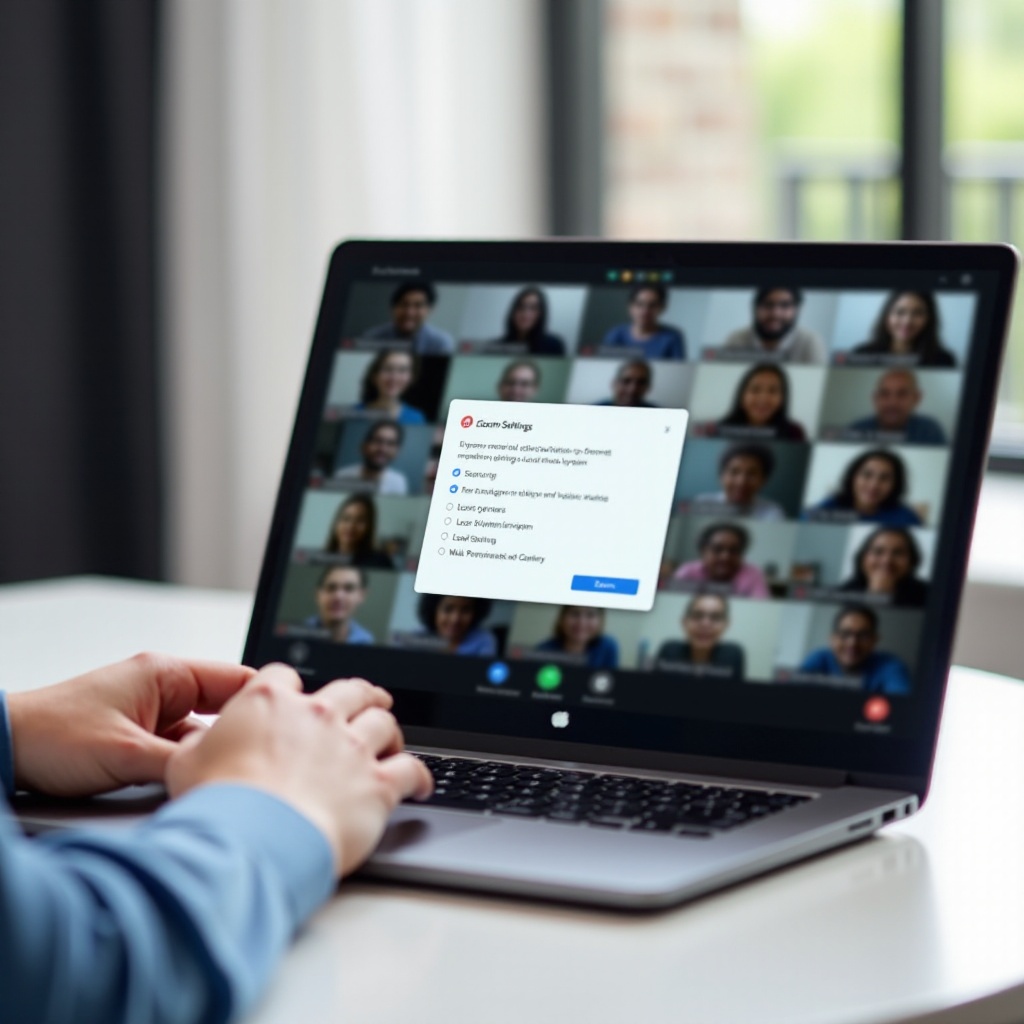
If You Meant ‘Zoom In or Out’ on the Screen Instead (How-To)
Some people asking can you zoom on a Chromebook want to enlarge on-screen content. ChromeOS offers three tools: page zoom for websites, display scaling for everything on the screen, and accessibility magnifiers for fine control. Use the right tool for each situation so text stays readable and layouts remain usable.
Browser Page Zoom and Per-Site Defaults
- Zoom a page: In Chrome, press Ctrl plus to zoom in, Ctrl minus to zoom out, and Ctrl 0 to reset.
- Set a per-site level: Click the three dots > Zoom controls. Chrome remembers your setting for that site.
- Default zoom and fonts: Settings > Appearance lets you change default page zoom and font sizes for all sites.
System Display Scale and Resolution
- Open Settings > Device > Displays.
- Adjust Display size (scale) to make all UI elements larger or smaller.
- If you use an external monitor, pick the best resolution and scale for crisp text.
- If text looks blurry, try a different scale or resolution and restart apps.
Accessibility Magnifiers: Full-Screen and Docked
- Turn on the Full-screen magnifier in Settings > Accessibility. Pan the view by moving your mouse or with keyboard shortcuts listed in Accessibility settings.
- Use the Docked magnifier to show a zoomed strip at the top while keeping the full desktop visible.
- Fine-tune magnification level and scrolling behavior in Settings so it fits your workflow.
If Zoom meetings are not available on your device or account, you still have capable options that run well on ChromeOS.
Best Alternatives If Zoom Isn’t an Option
If your school or workplace blocks Zoom, ChromeOS supports other strong options. Each runs well in a browser and integrates with Google Workspace or Microsoft 365.
Google Meet on ChromeOS
- Works natively in Chrome. No install needed.
- Tight integration with Google Calendar, Classroom, and Drive.
- Reliable screen sharing and live captions.
Microsoft Teams on the Web
- Runs in Chrome or other modern browsers.
- Integrates with SharePoint, OneDrive, and Planner.
- Use the web app if the Teams Android app is restricted.
Conclusion
You asked, can you zoom on a Chromebook? Yes, you can. Install the Zoom for Chrome PWA for the best experience, or join from the web client when you need a quick start. If you only want to enlarge content, use page zoom, display scaling, or the accessibility magnifiers. Keep ChromeOS updated, follow basic privacy steps, and apply the performance tips above. With the right setup and habits, your Chromebook handles classes, meetings, and presentations with confidence.
Frequently Asked Questions
Can I use Zoom on a Chromebook without installing anything?
Yes. Join from the Zoom web client in Chrome. Click the meeting link and select Join from your browser if prompted. You can sign in or join as a guest if the host allows it. The browser client supports video, audio, chat, reactions, and screen viewing. For the smoothest experience and screen sharing, install the Zoom for Chrome PWA when possible.
Why can’t I find the Zoom app in the Play Store on my Chromebook?
Some organizations disable the Play Store, or your device may restrict Android apps. Zoom recommends the Zoom for Chrome PWA for ChromeOS, which often replaces the Android app. Install the PWA from zoom.us/download under Zoom for Chrome – PWA. If your admin blocks installs, ask IT to allow the PWA and to grant camera, microphone, and screen share permissions for Zoom.
How do I record a Zoom meeting on a Chromebook?
Use cloud recording with a licensed Zoom account. Start your meeting as the host, click Record, and choose Record to the Cloud. Local recording is not supported on ChromeOS in the PWA. After the meeting, Zoom processes the video in your cloud account. Share the link with permission controls, or download the cloud recording to your drive when processing finishes.