Introduction
Experience mobile gaming like never before by connecting your PS controller to your smartphone. Instead of relying on often frustrating touch controls, a PS controller provides a tactile and satisfying gaming experience on both Android and iOS devices. This guide will ensure you’re set up swiftly and smoothly, giving you an edge in your favorite games.
Understanding Compatibility
Before attempting to connect your devices, ensure compatibility to avoid unnecessary frustration.
Compatible Phone Models
Modern smartphones generally support connection with PS controllers as long as the phone has Bluetooth capability. Most devices running Android 10 or later, and iOS 13 or later, are compatible. Check your phone’s software version in the settings to confirm it is up-to-date and meets these criteria.
Supported PS Controller Versions
The PS4 DualShock 4 and PS5 DualSense controllers are typically compatible with mobile devices. You need to identify your controller model number, often starting with CUH-ZCT for PS4, and CFI-ZCT for PS5 controllers. Charging your controller fully will prevent any unexpected disconnections while gaming.
Preparing Your Devices
To ensure a hassle-free setup, it’s vital to prepare both your phone and controller.
Charging Your Controller
A fully charged controller is crucial for uninterrupted gaming. Use a USB cable to connect your controller to a power source. This simple step will prevent untimely power-offs.
Updating Device Software
Device updates often include essential patches and improved compatibility with peripherals. Ensure your device runs the latest operating system. Navigate to your phone’s settings, check for system updates, and install any available updates.
Connecting Your PS Controller via Bluetooth
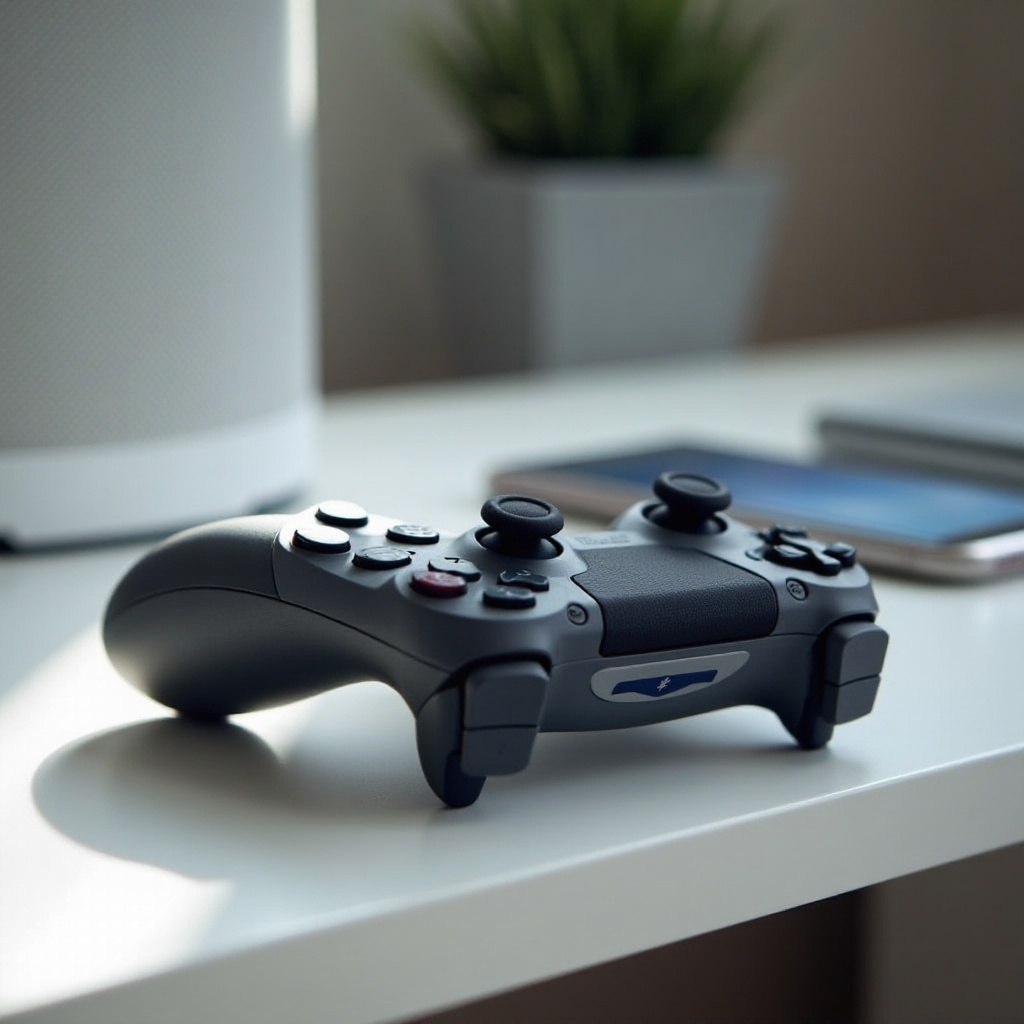
Pairing your controller with your phone via Bluetooth involves just a few straightforward steps.
Activating Bluetooth Pairing Mode on PS Controller
To activate pairing mode, make sure your controller is off. Press and hold the PS button and the Share (or Create) button simultaneously. The light bar will flash, indicating it’s ready to pair.
Pairing Process for Android Devices
- Open your phone’s Settings app.
- Navigate to ‘Bluetooth’ and ensure it’s enabled.
- Find your controller in the list of available devices and select it.
- Confirm the pairing request, and you’re ready to play!
Pairing Process for iOS Devices
- Open the Settings app on your iPhone.
- Tap ‘Bluetooth’ and turn it on if it isn’t already active.
- Look for your PS controller under ‘Other Devices.
- Tap on it to connect, and confirm any prompts.
Alternative Connection Methods
If Bluetooth connectivity fails or if you prefer a more stable connection, consider these alternatives.
Wired Connection Using OTG Cables
An OTG (On-The-Go) adapter allows a wired connection. Connect an OTG adapter to your phone, and plug the controller into the adapter using a USB cable. Wired connections are often more stable and free from Bluetooth connectivity issues.
Using Remote Play App for Seamless Connection
For a more integrated gaming experience, use the PS Remote Play app. Download it from Google Play Store or the Apple App Store, and follow the prompts to link your console to your mobile device, allowing you to play console games directly on your phone.
Troubleshooting Common Issues
Sometimes, things don’t go as planned. Addressing common issues efficiently will keep your gaming session flowing smoothly.
Resolving Bluetooth Connectivity Problems
- If the controller isn’t visible in the device list, try restarting your phone and attempt the pairing process again.
- Ensure other devices aren’t interfering by trying the setup in a different environment or moving other Bluetooth devices away.
- Slow or dropped connections can often be traced back to low battery charge; make sure the controller is fully charged to prevent this.
Resetting the Controller for a Fresh Start
If problems continue, resetting the controller might help. A small reset button located near the L2 button needs a paperclip or pin for pressing. Hold it down for a few seconds to reset, then try reconnecting.
Enhancing Your Mobile Gaming Experience
After successfully connecting, you can refine your gaming experience for maximum enjoyment.
Recommended Apps for Controller Optimization
Using apps like Octopus or Panda Gamepad Pro allows you to map controls effectively on games that don’t naturally support controller play. This customization ensures a smoother and more intuitive experience.
Customizing Controller Settings for Different Games
Games often provide different settings for controllers. Explore these within each game’s settings menu to fine-tune sensitivity, button assignments, and other preferences to suit your play style perfectly.
Conclusion
By following this guide, you can easily connect your PS controller to your smartphone, transforming your gaming sessions into more enjoyable and seamless experiences. The simpler, tactile control provided by a physical controller is a game-changer for mobile gaming enthusiasts.
Frequently Asked Questions
Can any PS controller be connected to a phone?
While not all controllers are compatible, the PS4 DualShock 4 and PS5 DualSense controllers are widely compatible with most smartphones.
Why is my PS controller not connecting to my phone?
Ensure the controller is in pairing mode, free from other connections, and check if your phone’s Bluetooth is turned on and working properly.
Is it possible to connect multiple controllers to one phone?
Yes, you can connect multiple controllers; however, compatibility is dependent on the game’s support for multiple controllers and the device’s capacity to handle multiple Bluetooth devices.