Introduction
You open your iPhone, tap around, and the app you need is nowhere. It is not deleted, but the icon is missing. Finding hidden apps on iPhone does not require advanced tools. You only need to follow a clear set of checks, starting with Search and the App Library, then moving into Screen Time, storage, and profiles. This order saves time and avoids resets you do not need.
This guide lays out practical steps that work on current iOS versions. You will confirm whether the app is installed, restricted, offloaded, or disguised as a web shortcut. You will also learn the best settings to prevent this problem from returning. We will start by clarifying what hidden means on iPhone, because the cause determines the fix.
What Counts as a ‘Hidden’ App on iPhone
Hidden can mean more than one thing on iPhone. You might have the app installed, but the icon sits off the Home Screen. A whole Home Screen page might be hidden. Screen Time could block the app by age rating or category. The app might be offloaded to save space. It could be a hidden purchase in your App Store account. You might even be looking for a web app shortcut, not a native app. In managed or work devices, a profile can also change which icons you see.
Each situation calls for a different fix. Before you open Settings, try the fastest discovery tools built into iOS.
Quick Methods: Use Search, App Library, and Siri
Start with the quick wins. These take seconds and often solve the issue.
1) Use Search
– From any Home Screen, swipe down in the middle to open the search field.
– Type the app name. If it appears, tap to open.
– If a folder name appears beside the result, the app lives in that folder. Open the folder from your Home Screen and move the app where you want it.
– Long-press the search result and add it to the Home Screen if the option appears.
2) Use the App Library
– Swipe left through all pages until you reach the App Library.
– Use the search bar at the top or browse categories.
– Press and hold the app icon, then drag it to the left to place it on a Home Screen page. If shown, tap Add to Home Screen.
3) Ask Siri
– Say: Hey Siri, open [app name].
– If Siri opens it, the app exists. When you return to the Home Screen, find it in the App Library and place it on a page.
If you still cannot see the icon, the app may be hidden by a page setting. Restore any hidden pages next.
Reveal Hidden Home Screen Pages and Unhide App Icons
A single toggle can hide an entire page of icons. Re-enable those pages to bring back several apps at once.
- Long-press any empty area of the Home Screen until the icons jiggle.
- Tap the row of dots above the dock to open the page overview.
- Check any unchecked pages to re-enable them, then tap Done.
If the app is still missing, add it from the App Library. Press and hold the app in the App Library, then drag it onto a visible page, or choose Add to Home Screen where available. If pages and App Library do not help, the icon could be tucked into a folder, the dock, or hidden behind a widget stack.
Check Folders, the Dock, and Widget Stacks
Many missing icons are simply out of sight. Do a quick sweep.
- Folders: Open every folder that looks likely, including ones named Utilities, Work, or with emoji. Swipe through folder pages; folders can have multiple pages.
- Dock: Check the dock at the bottom of the screen. It holds up to four icons. If it is full, move one item out to make room for the app you want to feature.
- Widget Stacks: Smart Stacks rotate widgets and can sit where you expect app icons. Long-press the stack, swipe through its layers, and look at nearby pages and folders to see if the app moved.
If the icon remains missing after these checks, the next most common cause is Screen Time. Restrictions can hide entire categories or specific Apple apps.
Screen Time: Restrictions, Allowed Apps, and Content & Privacy
Screen Time controls can hide icons based on age ratings, categories, or admin choices. Review each area carefully.
1) Allowed Apps
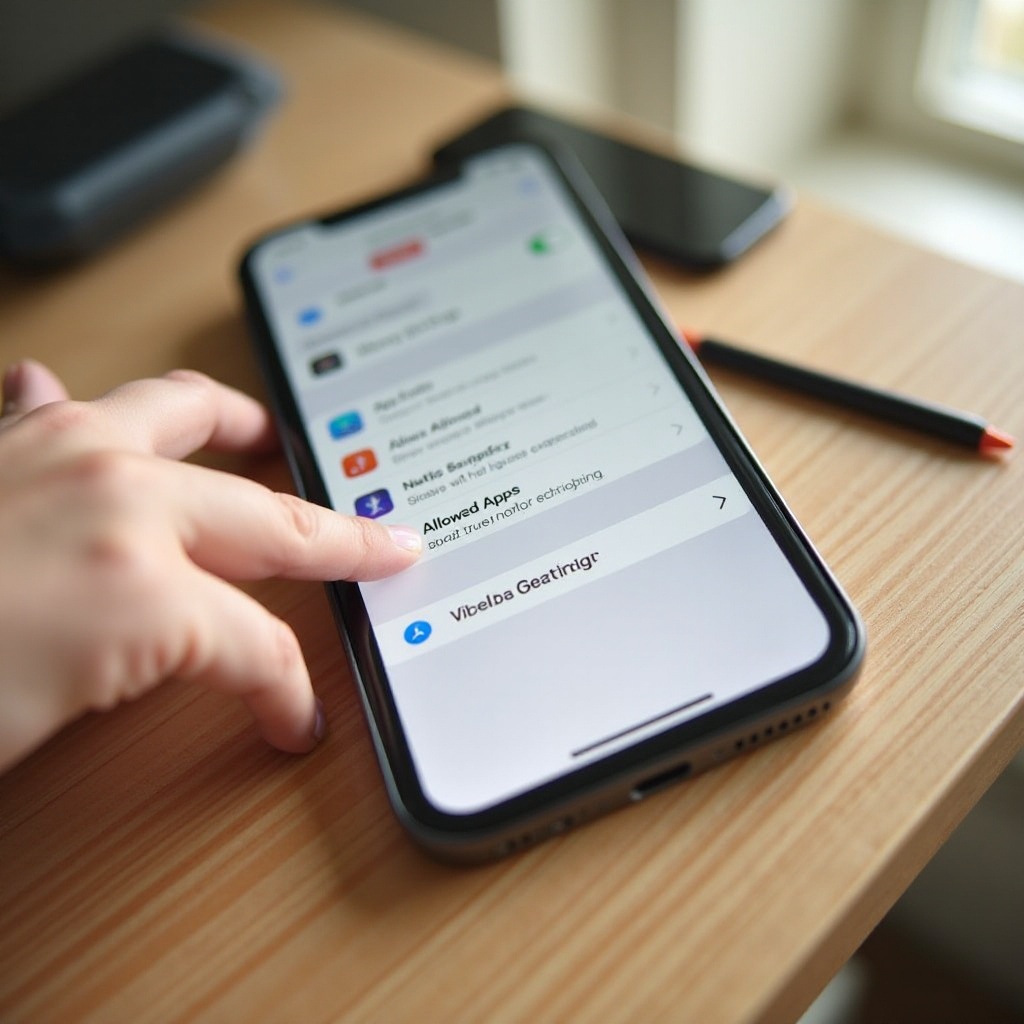
– Go to Settings > Screen Time > Content & Privacy Restrictions > Allowed Apps.
– Make sure core apps like Safari, Camera, Mail, and FaceTime are toggled on if they are missing.
2) Content Restrictions
– Go to Settings > Screen Time > Content & Privacy Restrictions > Content Restrictions.
– Tap Apps and set Allow All, or choose an age range that includes your missing app.
– If Web Content is set to Allowed Websites Only, certain web links and shortcuts may behave differently.
3) App Store Permissions
– Go to Settings > Screen Time > Content & Privacy Restrictions > iTunes & App Store Purchases.
– Set Installing Apps and Deleting Apps to Allow.
– If prompted, enter your Screen Time passcode to change settings.
If Screen Time looks fine, storage settings may be the reason. iOS can offload unused apps while preserving data. That makes icons vanish or appear grayed out.
Find Offloaded Apps and Reinstall from the App Store
Offloading removes the app code but keeps data. Reinstalling brings the icon back.
- Look for grayed-out icons with a cloud symbol. Tap to re-download.
- Or go to Settings > General > iPhone Storage. Find the app, then tap Reinstall App.
- If you prefer to keep every app installed, go to Settings > App Store and turn off Offload Unused Apps.
If you cannot find the app anywhere, your purchase might be hidden in the App Store account. Unhide it, then re-download.
Unhide Purchases and Review App Store Purchase History
Hidden purchases and Family Sharing can make it hard to see what you own.
- Open App Store, tap your profile picture, then Account.
- Tap Hidden Purchases to see apps you previously hid. Unhide the app, or search the store to download it again.
- Tap Purchased, then My Purchases to view your own apps if you use Family Sharing.
- If the App Store shows Open but you cannot find the icon, place it from the App Library onto a page.
If the App Store confirms the app exists, system usage panels can prove it is present and active. Check storage, battery, and cellular data next.
Use iPhone Storage, Battery, and Cellular Data to Spot Apps
These panels reveal what is installed and what has run recently. Use them to confirm existence and activity.
- iPhone Storage: Go to Settings > General > iPhone Storage. The list shows apps and their data size. If the app appears, tap it to view options to Offload or Delete. A listed app means iOS knows about its data, even if the icon is missing.
- Battery: Go to Settings > Battery. Review usage for Last 24 Hours and Last 10 Days. If the app consumed power, it ran recently. Tap the chart for more detail.
- Cellular or Mobile Data: Go to Settings > Cellular. Scroll to see which apps used data. If the app shows usage, it is present on the device.
If you can prove the app exists but still cannot find the icon, a Focus mode may be hiding the page where the app lives.
Focus Modes That Hide Home Screen Pages and Notifications
Focus modes can hide entire Home Screen pages while you work or rest. A Focus can also limit which notifications you see. Review each Focus to ensure it is not hiding your app.
- Go to Settings > Focus and choose a Focus, such as Do Not Disturb, Work, or Personal.
- Tap Home Screen. If Customize Screens is on, you may be hiding pages. Turn off the hide setting or add the missing page back.
- Check Lock Screen and Allowed Notifications to make sure the app is not filtered.
If Focus settings look fine, move on to device profiles and VPN. Managed devices and unknown profiles can alter how apps appear.
Profiles, Device Management, VPNs, and Enterprise Apps
Profiles and Mobile Device Management can control app installs, hide icons, and enforce security. Review these settings on any device that is work-managed or that you share.
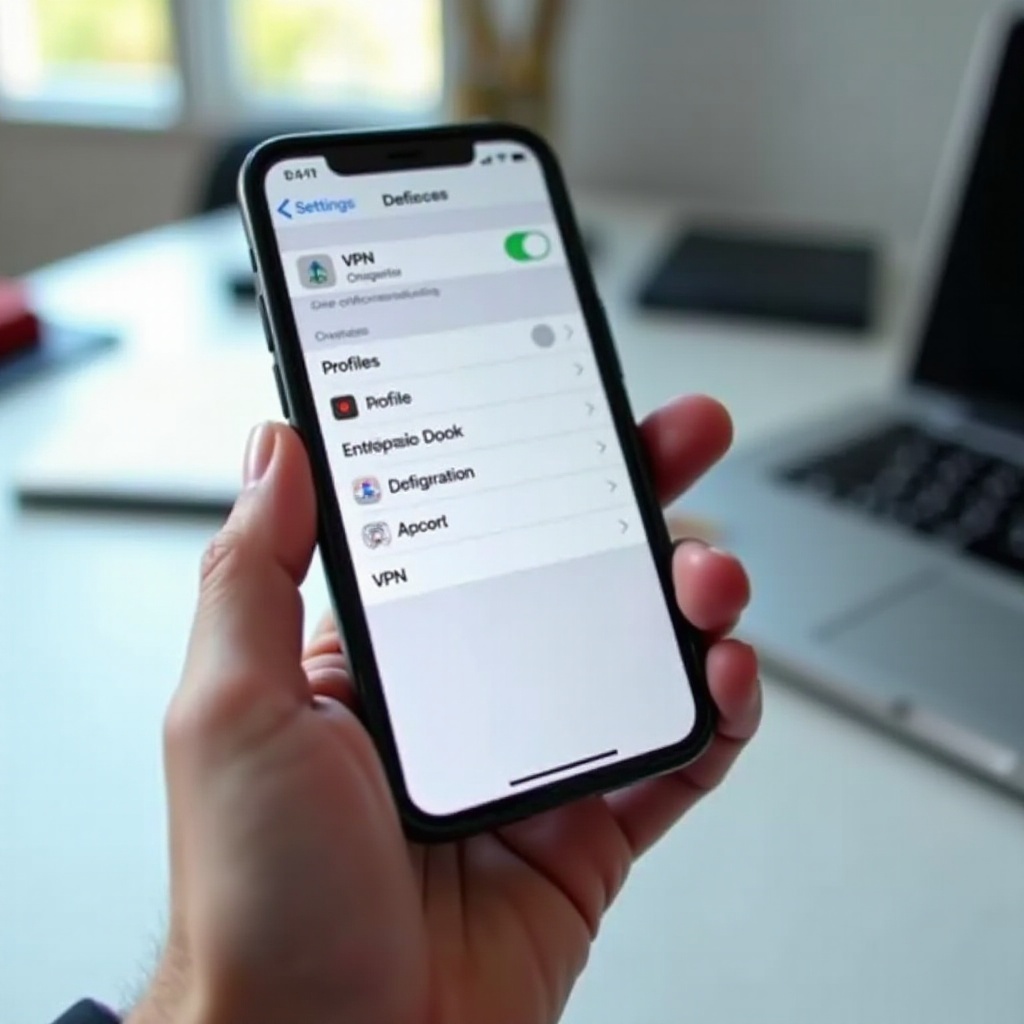
- Go to Settings > General > VPN & Device Management.
- Under Configuration Profiles, remove profiles you do not recognize. Read the summary to understand what the profile changes before you remove it.
- Under Mobile Device Management, your company or school may enforce app visibility. If so, contact your admin for changes. Do not remove MDM unless you have permission.
- Check VPN entries you do not recognize and remove them if they are not needed. Unknown VPNs can route traffic and add certificates.
- Enterprise-signed apps rely on certificates. If a certificate expires, the app may stop opening or behave oddly. Reinstall through your organization or ask the issuer to renew the certificate.
If the item you are missing is not a native app, it might be a web app shortcut. Those look like apps, but they behave differently in Search and Storage.
Web Apps: Home Screen Shortcuts and Safari Downloaded Apps
Many users add sites to the Home Screen. These shortcuts look like apps but do not appear in the App Store or in Storage like native apps.
- Use Search to try the site or shortcut name. If nothing appears, open Safari, visit the site, tap the share icon, and choose Add to Home Screen to recreate the shortcut.
- Web apps often show their usage under Safari in Battery rather than as a separate app. That is normal.
If nothing you try reveals the icon, it is time to reset layout and refresh Search. This step returns the Home Screen to a known good state.
Reset Home Screen Layout and Rebuild Search Index
A layout reset brings back the default icon arrangement. It does not delete your apps; it only removes folders and custom placement. Many users find lost icons immediately after this step.
- Go to Settings > General > Transfer or Reset iPhone > Reset > Reset Home Screen Layout.
- After the reset, check the first few screens and the App Library for your app.
- To refresh Search, go to Settings > Siri & Search, select the app, turn off Show App in Search, wait a few seconds, and turn it back on. Or restart the phone to let indexing rebuild.
If you discover the app is unavailable to download, the developer might have pulled it, or your region might not allow it. Here is how to confirm and what to do next.
If an App Was Removed from the App Store or Region-Restricted
Sometimes you cannot re-download an app even though you used it before. That happens when the developer withdraws it or limits it to a region.
- Open App Store > profile > Purchased. If the app shows but cannot be installed or says Not Available, it may be removed or region-locked.
- If it still runs on your phone, you can keep using it, but you cannot reinstall it if you delete it.
- Changing your Apple ID region can affect billing, subscriptions, and access to past purchases. Review Apple terms before making any change.
- Contact the developer for a status update, or search for reputable alternatives with strong ratings and recent updates.
Once you find or replace the app, take steps that make hidden icons less likely in the future. A few habits improve safety and reduce surprises.
Safety, Privacy, and Parental Control Tips
Good device hygiene prevents confusion and reduces risk.
- Set a Screen Time passcode and keep it private. This prevents others from changing restrictions without your knowledge.
- Use Ask to Buy if you manage a family group. You will see new installs before they appear on devices.
- Avoid installing unknown configuration profiles or enterprise certificates. Remove anything you do not trust.
- Review permissions in Settings > Privacy & Security. Turn off access you do not need for location, photos, contacts, and more.
- Keep iOS updated to the latest version. Updates often fix bugs that affect app visibility and indexing.
- If you suspect a disguised vault app, check Battery and Cellular usage for names you do not recognize. High background use is a red flag.
- For kids, set clear rules and explain why certain apps are restricted. Conversation builds trust and reduces workarounds.
Conclusion
Finding hidden apps on iPhone works best when you move from simple checks to deeper settings. Confirm the app with Search, the App Library, and Siri. Reveal hidden pages, scan folders and the dock, and review Screen Time. If that fails, look for offloaded apps and hidden purchases. Use iPhone Storage, Battery, and Cellular data to confirm presence and activity. Next, check Focus, profiles, and VPN. Reset the Home Screen layout and refresh indexing if needed. When an app is pulled from the store or region-locked, evaluate safe alternatives.
Follow this sequence, and you will surface missing icons faster, avoid unnecessary resets, and keep your device organized and secure. These steps also help parents, students, and professionals keep their Home Screens tidy and their data safe, turning a frustrating hunt into a quick, reliable fix.
Frequently Asked Questions
How do I quickly find hidden apps on iPhone without changing settings?
Start with Search by swiping down on the Home Screen and typing the app name. Then check the App Library and drag the icon back to a page. You can also ask Siri to open the app. If it opens, place it from the App Library onto your Home Screen.
Why is an app missing after I install it, and how do I unhide it?
New installs can land in the App Library only. Open the App Library, search for the app, then long-press to add it to the Home Screen. If it still does not appear, review Screen Time restrictions and ensure the Home Screen page is not hidden.
Can someone hide spyware on my iPhone, and how can I detect it?
iOS limits hidden background apps, but risky profiles or MDM can change behavior. Check Settings > General > VPN & Device Management for unknown profiles, remove anything you do not trust, review Battery and Cellular usage for unfamiliar apps, update iOS, and if needed back up and erase to set up as new.