Making the switch from an Android phone to an iPhone involves transferring your data securely and efficiently. A successful transition requires attention to detail and the right tools, ensuring none of your invaluable information or memories are lost in the process. This comprehensive guide will facilitate a smooth data migration between the two platforms.
Introduction
Transitioning to a new iPhone involves more than just acquiring a new device. It’s about bringing your digital life with you, from personal photos to vital contacts. Properly backing up your Android phone ensures that you don’t lose any crucial data and that your new device is ready to use immediately after switching. By following the right methods and preparations, you can ensure that all your important data is backed up and transferred seamlessly.
Preparing Your Devices for Backup and Transfer
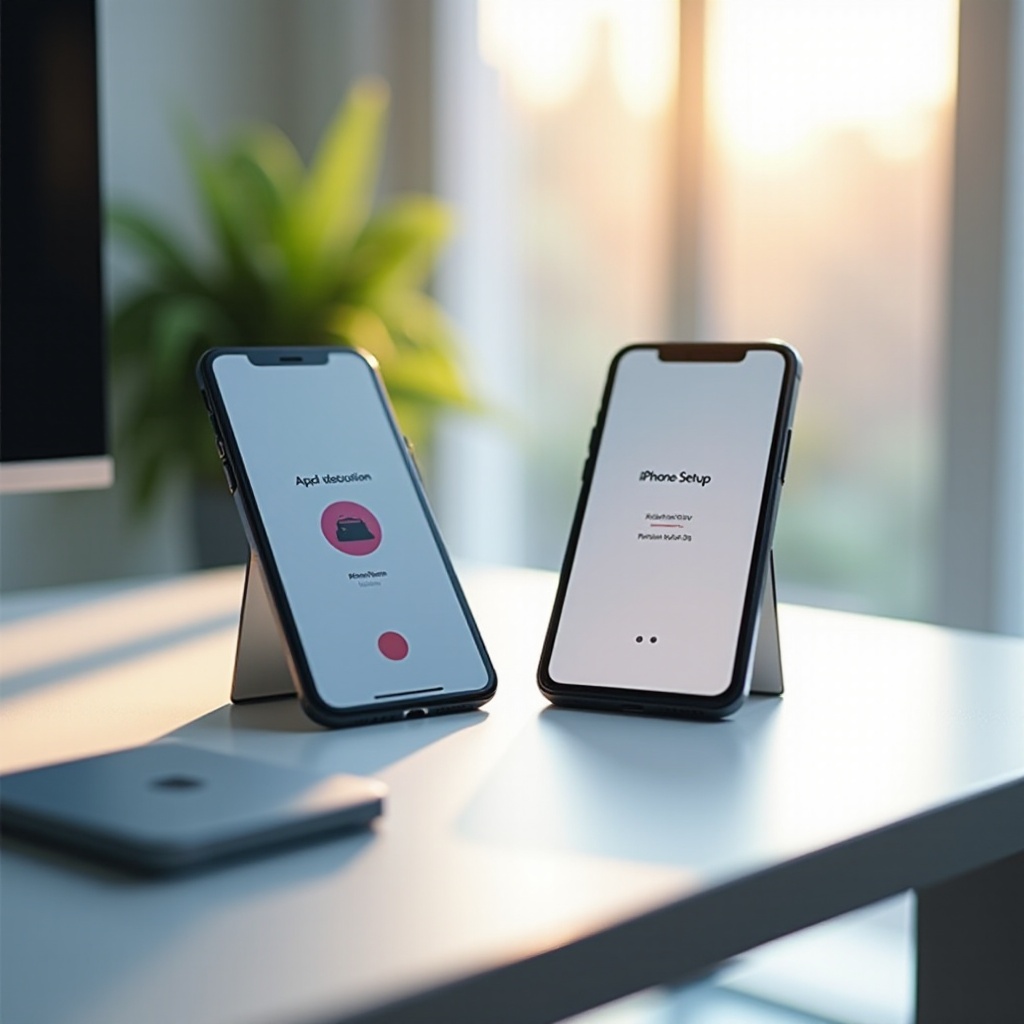
Before you begin the data transfer process, it’s essential to prepare both your Android and iPhone devices adequately. This preparation will streamline the data migration, making it more efficient and reducing the potential for errors.
Ensuring Your Android Device is Ready
- Battery Check: Ensure your Android phone is charged above 50% to avoid interruptions.
- Storage Space: Free up storage by deleting unnecessary files, ensuring enough space for the transfer process.
- Backup Data: Use Google Backup to save your data, which can be easily retrieved during the transfer.
Setting Up Your iPhone for Data Reception
- Initial Setup: During the initial setup of your new iPhone, navigate to ‘Apps & Data’ and select ‘Move Data from Android.
- Wi-Fi Connection: Connect your iPhone to a stable Wi-Fi network to facilitate the transfer process.
Using Apple’s Move to iOS for Data Transfer
Apple’s Move to iOS app offers a straightforward solution for transferring data from Android to iPhone, ensuring that key information makes the switch successfully.
Installation and Setup of Move to iOS App
Start by downloading the free Move to iOS app from the Google Play Store on your Android device. Once the app is installed, open it and follow these steps:
– Agree to the terms and conditions displayed.
– Enable location, Wi-Fi, and mobile data if required by the app.
Step-by-Step Data Transfer Process
- Connect: Ensure both devices are connected to the same Wi-Fi network.
- Code Entry: On your iPhone, a code will appear. Enter this code on your Android device.
- Choose Data: Select the types of data you wish to transfer (e.g., contacts, message history, photos, etc.).
- Transfer: Click ‘Next’ on your Android phone to start the transfer. Wait until the loading bar on your iPhone finishes. This can take a few minutes to over an hour depending on the amount of data.
Once completed, your data will have successfully migrated to your new iPhone.
Alternative Methods for Backing Up and Transferring Data
While Apple’s Move to iOS app is reliable, considering alternative methods can provide additional layers of security and options, ensuring a comprehensive transfer of all your data.
Using Third-Party Apps
Several third-party applications can facilitate data transfer, offering additional options if you encounter issues with the Move to iOS app. Some well-regarded apps include:
– AnyTrans: Offers an all-in-one solution for managing files and transferring data.
– MobileTrans: Simplifies the transfer of contacts, photos, and more.
Cloud Storage Solutions
Utilize cloud services to transfer your data:
– Google Photos: Automatically back up and sync your photos and videos, allowing easy access on your iPhone.
– Dropbox: Use Dropbox to transfer documents and other file types by uploading them from your Android device and then downloading them on your iPhone.
These alternatives provide flexibility and can serve as an additional backup during the transfer process.

Troubleshooting Common Issues During Data Transfer
Even with thorough preparation, some users may encounter challenges during their data transfer process. Knowing how to troubleshoot these issues can save time and prevent data loss.
Connectivity and Compatibility Issues
If you experience connection troubles between your devices, ensure:
– Both devices are on the same Wi-Fi network.
– Bluetooth is disabled on both devices.
– Airplane Mode is turned off.
Verifying Successful Data Transfer
After transferring, it’s crucial to check that all your essential data made it to your iPhone. Here’s how:
– Review your photos, contacts, and calendar to verify complete transfer.
– Confirm that other files like documents are accessible.
Ensuring that all critical data is transferred helps in identifying any gaps early and allows for quick corrective action.
Ensuring Data Integrity and Security
Securing your data not only involves successful transfer but also making sure it’s safe and intact during and after the migration process.
Checking for Missing Data
Cross-verify your data backup with what’s available on your iPhone. Manually check through apps where data transfer consistency is crucial, such as contact lists and media files.
Best Practices for Protecting Your Information
- After transferring, activate two-factor authentication on your Apple account for increased security.
- Regularly back up your iPhone using iCloud or iTunes to ensure data remains secure.
Following these practices helps maintain data integrity and offers peace of mind about the protection of your personal information.
Conclusion
Transferring data from an Android phone to an iPhone does not have to be a stressful experience. Armed with the right information and tools, you can ensure that all your important data is transferred safely and securely to your new device. Use this guide to navigate the transfer process seamlessly and enjoy your new iPhone without missing a beat.
Frequently Asked Questions
What data can be transferred from Android to iPhone?
You can transfer contacts, message history, photos, videos, web bookmarks, mail accounts, and calendars from Android to iPhone using Move to iOS.
Can I transfer apps from Android to iPhone directly?
No, apps cannot be transferred directly. However, most major apps are available on both platforms, and you can download the iOS equivalents on your new device.
How long does it typically take to transfer data using Move to iOS?
The time varies depending on the amount of data. It can take from a few minutes to over an hour. Ensure both devices are fully charged and connected to Wi-Fi for optimal performance.