Introduction
Root access gives your Android phone deep control over apps and system behavior. You can remove bloat, automate tasks, block ads at the system level, and tune performance. One click root PC tools promise a fast path to those benefits by running from a Windows computer with minimal setup. The software detects your device, chooses a method, and attempts root in minutes. That promise is attractive, but you need to understand the risks, limits, and proper steps before you start. This guide explains what one click root PC tools do, how they work, and which checks protect your data. You get a pragmatic checklist, a clear step-by-step process, proven fixes, and safer alternatives. With preparation and a fallback plan, you can proceed confidently or decide to skip root if your device is not a match.
What Is One Click Root on PC?
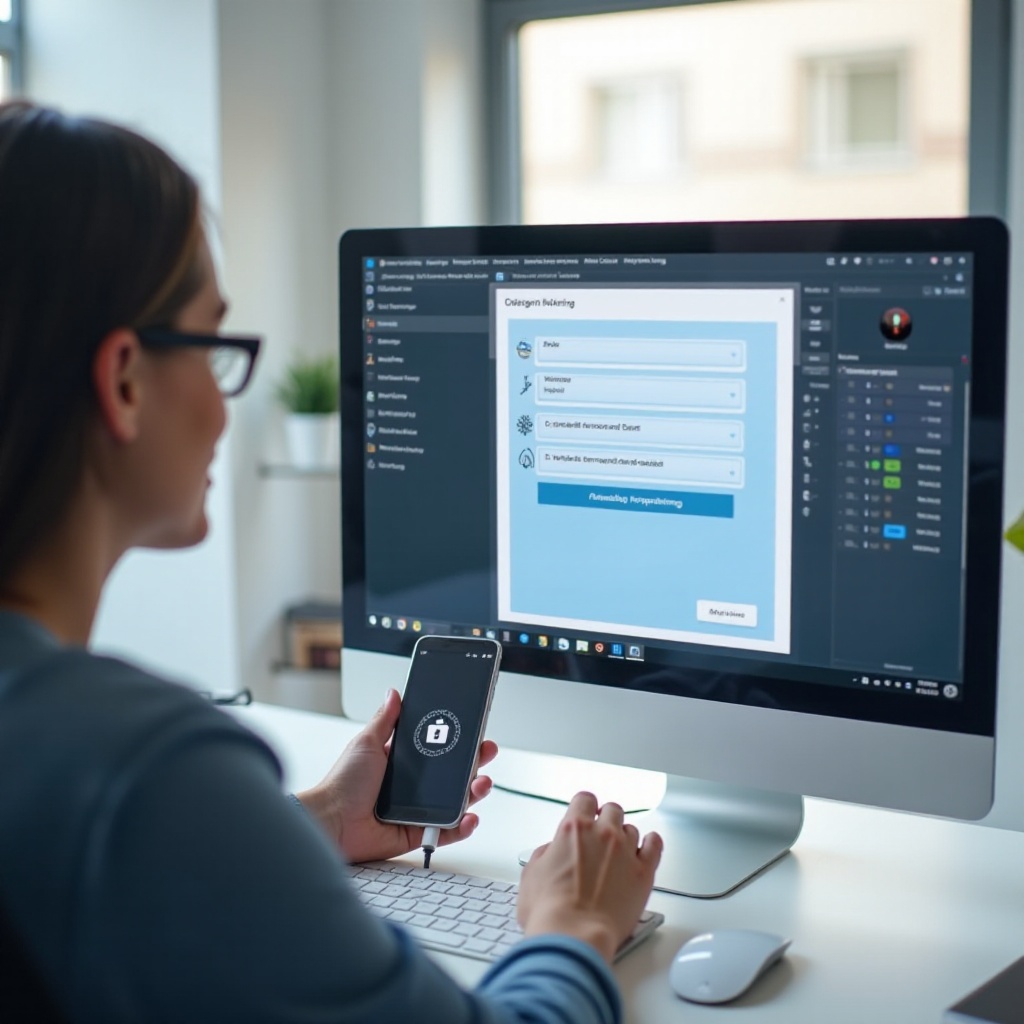
One click root on PC describes Windows software that roots an Android phone with a single primary action. The client installs drivers, talks to your phone over USB, and uses a known pathway to gain elevated access. Some tools offer paid remote assistance, where a technician completes the process for you. Methods vary by brand, model, and Android version. On some devices, a bootloader unlock plus a patched boot image grants root. On others, a temporary exploit escalates privileges during a live session.
This category targets users who want root without learning fastboot commands or custom recoveries. That ease has trade-offs. You must trust the tool, accept debugging prompts, and allow it to modify low-level partitions. The key is to verify support for your exact device and prepare a clean exit path. The next section explains how these tools operate so you can judge compatibility and choose the right approach.
How One-Click Rooting Works on a PC
Most one click root PC tools rely on ADB to identify your device and negotiate permissions. After you enable USB debugging and accept the RSA prompt, the software reads your brand, model, build number, and security patch. Based on that fingerprint, it picks a route. Common routes include using a known exploit to gain temporary elevated rights or, where the OEM allows it, unlocking the bootloader and flashing or booting a patched image that grants persistent root.
The client often pushes helper binaries, runs privileged steps, and installs a root manager such as Magisk or Superuser. When the sequence finishes, the device reboots and the tool prompts you to verify root. The flow looks simple, but every step depends on your device state and software version. That is why careful prep is critical. Understanding the mechanics sets you up for the next topic: whether the benefits outweigh the downsides for your situation.
Benefits and Trade-Offs of Rooting with One Click Root PC
Root opens features normal apps cannot reach. You can remove preinstalled apps, block trackers with a system hosts file, and control background services. Power users can automate with deeper hooks, adjust CPU governors, and run full device backups. Developers gain access to powerful testing tools, custom kernels, and advanced logs.
The trade-offs are real. Root can cause banking, streaming, or gaming apps to fail integrity checks. Rooted devices may trip Play Integrity, and some OEMs record a modified state when you unlock the bootloader. That can void warranty support. Updates can become harder, and a failed attempt can soft brick the device. One click root PC tools speed up execution but cannot remove these risks. We now move to the checklist that reduces problems and gives you a safe rollback path.
Compatibility, Requirements, and Pre-Root Checklist
Sound preparation prevents most issues and makes recovery straightforward. Confirm support, back up your data, and set up your PC and phone properly. With these items in place, you can proceed to the step-by-step section without guesswork.
Device and Android Version Support
- Check the tool vendor support list for your brand, model, and Android version.
- Confirm whether your device allows bootloader unlock; some carriers block it.
- Read recent user reports for your exact build number and security patch.
- Download stock firmware for your model and region as a recovery fallback.
Backups, Drivers, and Developer Options
- Back up photos, videos, and files to cloud or to your PC.
- Export app data where possible and back up SMS and call logs.
- Install OEM USB drivers or Google USB drivers on Windows.
- On the phone, enable Developer options, then enable USB debugging and OEM unlock if available.
Security and Power Precautions
- Charge the phone to at least 60 percent and keep the PC on stable power.
- Use the original cable and a direct USB port; avoid hubs and low-quality extensions.
- Close other phone management software that may conflict with ADB.
- Download the root client from the official source and verify checksums if provided.
With your environment ready, you can execute the process more safely. The next section walks you through the exact steps to run a one click root PC flow.
Step-by-Step: Use One Click Root on PC
Read the steps before you start. Follow them in order, and if a prompt surprises you, pause and review. Small choices during this phase can protect your data and prevent a bootloop.
Download and Verify the Client
1) Get the official one click root PC installer from the vendor website.
2) Scan the file with reputable antivirus software.
3) Check the digital signature and any provided checksum.
4) Install the client and restart Windows to finalize driver setup.
Connect, Authorize, and Start Root
1) Open the client and unlock your phone.
2) Connect the phone via USB; choose file transfer mode if asked.
3) On the device, accept the USB debugging RSA prompt and tick the box for always allow.
4) Confirm the device details shown in the client match your model and build.
5) Click the root button and do not disconnect until the tool finishes.
6) If the tool requests a bootloader unlock, read all warnings. On many devices, unlocking wipes data. Proceed only if you have a verified backup.
Verify Root Access
1) After the reboot, install a reputable root checker from Google Play.
2) Open your root manager app, commonly Magisk, and confirm root status.
3) From a command prompt, run adb shell, then type su; grant the prompt on the phone.
4) If root fails or the app crashes, stop here and move to troubleshooting. Do not repeat blindly.
If everything checks out, you can begin post-root setup and harden your device. If not, the next section gives targeted fixes for common failures.
Troubleshooting Common Issues
Even careful users hit snags. These remedies address the most frequent problems and help you recover cleanly. Apply one change at a time and retest so you isolate what works.
Device Not Detected on Windows
- Reinstall OEM or Google USB drivers and reboot the PC.
- Try a different USB port and a known-good cable; avoid hubs.
- In Device Manager, remove unknown or conflicting entries, then reconnect.
- Re-enable USB debugging and accept the RSA prompt again.
- Restart ADB with the commands adb kill-server and adb start-server.
Bootloop or Soft Brick Recovery
- First, try booting to stock recovery and clear cache if the option exists.
- If you unlocked the bootloader and flashed a patched boot image, restore the matching stock boot image.
- Use fastboot or an official OEM tool to flash the complete stock firmware for your model and region.
- If you installed a custom recovery, sideload a clean ROM or the stock package to restore.
Root Failed or Play Integrity Errors
- Update the one click root PC client to the latest release and retry once.
- If the exploit route fails, switch to a bootloader unlock plus patched boot image method.
- In Magisk, enable Zygisk and set a DenyList for sensitive apps that refuse to run on rooted phones.
- Some devices will never pass integrity checks after unlock. Decide whether to live with that or revert to stock.
With stability restored, you can refine your setup. The following best practices help you enjoy root without sacrificing safety.
Post-Root Essentials and Best Practices
Root gives you power and responsibility. Set a solid foundation so daily use stays smooth and secure. The tips below will prevent most headaches and data loss.
Manage Root with Magisk/Superuser
- Update Magisk to the latest stable release and avoid bleeding-edge builds on a daily driver.
- Grant root only to trusted apps. Review prompts carefully and log what you approve.
- Limit modules. Add one at a time, test, and keep notes so you can revert quickly.
Debloat Safely and Optimize Performance
- Freeze or disable bloatware before uninstalling. Confirm no system feature breaks.
- Use a backup-capable uninstaller so you can restore packages if needed.
- Tweak performance gradually. Monitor temperature, battery drain, and app stability.
Backup, Updates, and Safety
- Schedule weekly backups for apps and data. Keep at least one offline copy on your PC.
- Save stock boot and full firmware to your computer for quick restores.
- Before OTA updates, return affected partitions to stock, update, then re-root using a matching method.
Now that you can maintain a stable rooted device, plan your exit route as well. A clean unroot and relock helps with resale, warranty service, or troubleshooting.
How to Unroot and Relock If Needed
Plan the exit before you change more system components. Unroot and relock in a safe order to avoid errors.
- In Magisk, choose uninstall and select complete uninstall, then reboot.
- Flash the stock boot image that matches your current build number.
- If you replaced recovery or other partitions, flash full stock firmware for your model and region.
- Use fastboot to relock the bootloader if your device supports it. Relocking while modified can brick the device; restore all stock images first.
- After relock, perform a factory reset to clear warnings and complete setup cleanly.
With a clean rollback plan, you can take informed risks. Still, you should understand the policy and legal context before you modify your phone.
Safety, Warranty, and Legal Considerations in the U.S.
Rooting a phone is legal in the United States, but manufacturers and carriers set their own warranty policies. Many brands detect an unlocked bootloader and flag the device as modified. That flag does not make your phone illegal, but it can lead to refused warranty service. Data safety matters too. Rooted apps can see more of your system, so only grant root to trusted software. Keep Play Protect on, and avoid sideloading unknown binaries from random forums or mirrors. If a tool requests remote assistance, verify the company identity and read support terms before you allow access. When in doubt, stop, back up, and ask for help from a trusted community or the vendor. Your best defense remains the same: full backups, stock firmware on hand, and a clear rollback path.
You now know how to prepare, execute, and recover. Still, one click root PC may not suit every device or user. The next options offer more transparency and often better long-term stability.

Safer Alternatives to One-Click Rooting
When one click methods struggle with your model or security patch, manual paths give you more control. These alternatives reduce guesswork and improve reproducibility.
Magisk Patched Boot via Fastboot
- Unlock the bootloader using your OEM procedure.
- Extract the stock boot image from the firmware that matches your current build.
- Patch the image with Magisk on the phone.
- Flash the patched image with fastboot. This approach is clean, reversible, and widely documented.
OEM Unlock + Custom Recovery
- Where supported, flash a custom recovery for your device.
- Make a full backup if the recovery supports it.
- Flash Magisk or a compatible root package from recovery.
- Keep a copy of the stock recovery and images to revert quickly.
Non-Root Workarounds
- Use ADB debloat to remove or disable unwanted apps without full root.
- Enable private DNS or use DNS-based ad blocking to reduce trackers.
- Choose automation apps that work without root for common tasks.
Conclusion
One click root PC tools can make Android rooting faster and simpler, but preparation and caution determine the outcome. You saw how these clients operate, the benefits they unlock, and the risks you must weigh. A solid checklist, a careful step-by-step flow, and a tested recovery plan protect your data and your device. If your model aligns with supported methods, you can gain root with minimal fuss and maintain stability with best practices. If it does not, proven alternatives like patched boot images or non-root tweaks still deliver control and performance. Treat root as an optional upgrade, not a shortcut. Back up first, verify downloads, and change one thing at a time. With that mindset, you can enjoy the freedom of root while staying safe, productive, and prepared for the next update.
Frequently Asked Questions
Is one click root on PC safe for my device?
It can be safe on supported models if you prepare well. Use official downloads, confirm drivers, and keep full backups. Risk remains, especially with bootloader unlocks and exploits.
Will rooting with a PC wipe my data or void my warranty?
A bootloader unlock often wipes data and may flag the device as modified, which can void warranty service. Back up first and review your OEM policy before proceeding.
Can I unroot and receive OTA updates after using one click root?
Yes, if you restore stock partitions and remove root cleanly. Uninstall Magisk, flash stock boot, then update. After the OTA, re-root with a method that matches the new build.