Introduction
Why your Apple ID password matters on iPhone
Your Apple ID password protects everything tied to your iPhone: iCloud, Photos, contacts, messages, purchases, and subscriptions. If someone gets it, they can change security settings, view private data, and lock you out. If you forget it, you lose access to vital services until you reset it. You can avoid both problems by changing your password on a regular schedule and keeping strong recovery options.
Who this guide is for
This guide helps you change or reset your Apple ID password on iPhone whether you remember it or not. It works if you manage a single iPhone, several Apple devices, or family devices through Family Sharing. You will find direct steps and backup methods that work even if Settings is restricted or you cannot receive codes on your usual number.
What you will learn
You will learn the fastest way to change your password, full step by step methods for different situations, and ways to recover access if you are locked out. You will also learn how to update apps and services after the change, fix common errors, and strengthen your security so you stay in control. Before you act, it helps to understand how the Apple ID password differs from your iPhone passcode.
Apple ID Password vs iPhone Passcode: What is the Difference?
Apple ID password protects iCloud and purchases
Your Apple ID password signs you in to iCloud and Apple services. It controls backups, Photos sync, App Store buys, subscriptions, messages with Apple ID, and device restores. Changing it protects your digital identity across all Apple platforms. When you change it, your devices may ask you to re enter it to keep sync and purchases working.
iPhone passcode unlocks the device
Your iPhone passcode, or Face ID or Touch ID, unlocks the iPhone and confirms your identity for sensitive actions. Apple uses it to verify you when you change account settings. That is why you can reset your Apple ID password on the device even if you do not remember the old password, as long as you know the iPhone passcode.
App specific passwords and when they apply
If you use third party apps to access iCloud Mail, Contacts, or Calendar, Apple may require app specific passwords. These do not replace your main Apple ID password and do not unlock your account. After you change your main password, some apps may ask you to sign in again or to create new app specific passwords. With the difference clear, run quick pre checks so you can complete the change smoothly.
Before You Begin: Requirements and Pre checks
Confirm two factor authentication and trusted phone number
Most Apple IDs use two factor authentication. Make sure your trusted phone number is current in Settings under your name. You may receive verification codes at that number or on other trusted devices. If the number is old, update it before you start.
Know your device passcode
You will need your iPhone passcode to change or reset your Apple ID password in Settings. If you do not know it, consider using another trusted Apple device or the Apple Support app on a friend or family member device.
Check for Screen Time, MDM, or Managed Apple ID restrictions
If Screen Time limits account changes, if your iPhone is managed by work or school through MDM, or if you use a Managed Apple ID, you might be blocked from changing your password in Settings. You may need to enter a Screen Time passcode, remove restrictions, or contact your admin.
Have a Recovery Contact or Recovery Key ready
A Recovery Contact can help you regain access if you cannot receive codes. A Recovery Key adds strong protection but requires a 28 character key to recover your account. If you set either one, keep the info handy. If all checks are good, you can jump straight to the fastest method next.
Quick Answer: The Fastest Way to Change It on iPhone
Settings > your name > Sign In and Security or Password and Security
Open Settings, tap your name, then tap Sign In and Security or Password and Security. This is where Apple places password controls on iPhone.
Tap Change Password and follow prompts
Tap Change Password. Enter your iPhone passcode if asked. Follow the on screen steps and choose a new password.
Create a strong, unique passphrase
Use a strong passphrase that you do not reuse anywhere else. Confirm the new password to complete the change. If you need more detail or run into roadblocks, continue with the next method for full steps.
Method 1: Change Your Apple ID Password in Settings when You Know It
Navigate to Sign In and Security
1) Open Settings.
2) Tap your name at the top.
3) Tap Sign In and Security or Password and Security.
This screen is your hub for Apple ID and security preferences.
Authenticate with device passcode or Face ID or Touch ID
Apple needs to verify it is you. Enter your iPhone passcode or use Face ID or Touch ID if prompted. This confirmation protects your account from unauthorized changes.
Enter and confirm a new password that meets Apple rules
Tap Change Password. If your device requests your current password, enter it. Then set a new password that follows best practices:
– At least 12 characters, or a long passphrase.
– Mix letters, numbers, and symbols.
– Avoid common words and repeated characters.
– Do not use your iPhone passcode.
Re enter the password to confirm.
Save and verify account wide sign in
Tap Change or Save. Your iPhone will update your Apple ID and refresh sign in across services. You may see prompts to re enter the new password in iCloud, App Store, Messages, or FaceTime. Complete those prompts to keep everything in sync. If you cannot remember the old password or do not see Change Password, use the reset options in the next method.
Method 2: Forgot Your Apple ID Password? Reset on Your iPhone
Reset using your device passcode
If you forgot the password but still have your iPhone, try on device recovery:
1) Open Settings > your name > Sign In and Security or Password and Security.
2) Tap Change Password.
3) Tap Forgot Password if shown.
4) Enter your iPhone passcode.
Your iPhone will let you set a new Apple ID password after it verifies ownership with your passcode.
Reset using a trusted phone number via SMS or call
If the passcode method does not appear, Apple may send a code to your trusted number:
1) Choose SMS or voice call.
2) Enter the verification code you receive.
3) Create and confirm a new Apple ID password.
This works when you have your number but cannot use your device passcode.
Use a Recovery Contact to regain access
If you set a Recovery Contact:
1) Choose the Recovery Contact option.
2) Ask your contact to share the code shown on their Apple device.
3) Enter that code on your iPhone.
4) Create a new password and confirm.
A Recovery Contact helps when you cannot receive codes at your number or other devices.
Use a Recovery Key if enabled
If you enabled a Recovery Key, Apple will ask for the 28 character key:
1) Enter the Recovery Key exactly as stored.
2) Complete any additional checks.
3) Set a new password.
Store the key in two safe places so you can rely on it in emergencies.
What to expect during identity verification and recovery delays
If Apple cannot confirm your identity right away, it may start account recovery. This process can take hours or days to protect you from account theft. Keep your phone on, watch for Apple messages, and avoid restarting recovery unless necessary. If you need a route that does not depend on this iPhone, try the options in the next method.
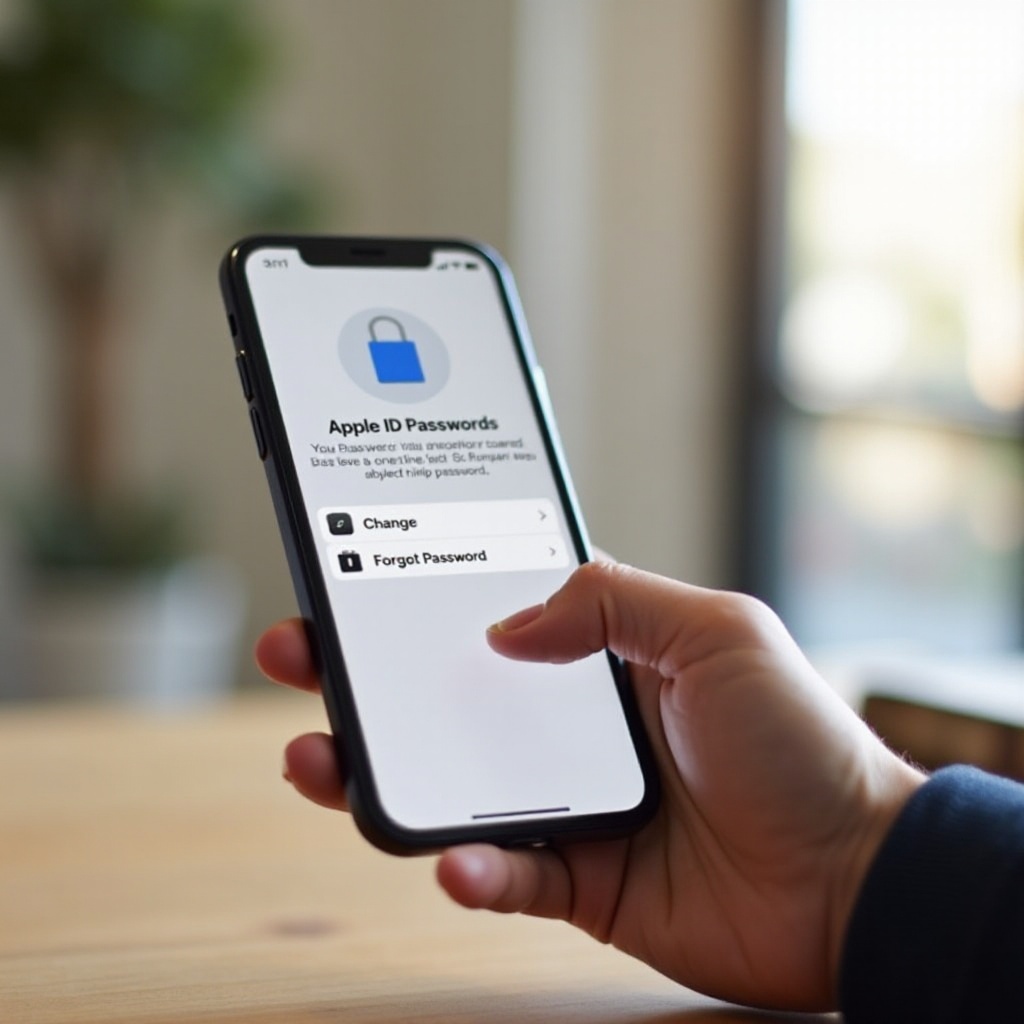
Method 3: Other Ways to Reset from Your iPhone
Use iforgot.apple.com in Safari and verify your identity
1) Open Safari and go to iforgot.apple.com.
2) Enter your Apple ID email address.
3) Choose a verification method such as a trusted device prompt, SMS, voice call, Recovery Contact, or Recovery Key.
4) Follow the steps to set a new password.
This web method helps if Settings is restricted, missing, or not responding.
Reset from a trusted iPad or Mac signed into your Apple ID
If you have another device signed in with your Apple ID, you can change the password there:
– On iPhone or iPad: Settings > your name > Sign In and Security > Change Password.
– On Mac: System Settings > your name > Sign In and Security > Change Password.
Enter the device passcode, then set a new password.
Use the Apple Support app on a friend or family member iPhone
1) Install the Apple Support app on their iPhone.
2) Open the app, tap Passwords and Security, then tap Reset Apple ID password.
3) Choose A different Apple ID.
4) Follow the prompts, verify with your trusted number or Recovery Key, and create the new password.
Once your password changes, you will need to update your details across apps and devices, which we cover next.
After You Change It: Update Your Password Across Apps and Services
iCloud, App Store, Apple Music, Messages, and FaceTime
Your iPhone may show prompts to re enter your new password in iCloud, the App Store, and Apple Music. If Messages or FaceTime uses your Apple ID, those apps may ask you to sign in again. Enter the new details so sync and purchases continue without interruption.
Mail, Calendar, and third party clients
If you use the Mail app with iCloud Mail, it should update automatically. If you use third party email or calendar apps, re enter the new password when asked. Some apps require app specific passwords for iCloud access. Generate new ones if sign in fails.
Reauthenticate on other Apple devices
Turn on your iPad, Mac, Apple Watch, or Apple TV. If a device does not prompt you, open iCloud settings or the App Store to trigger sign in. This ensures your new password works everywhere. If you face errors or missing codes, jump to troubleshooting next.
Troubleshooting: Fix Common Errors and Roadblocks
Not receiving verification codes
- Check cellular signal and Wi Fi.
- Toggle Airplane Mode off and on.
- Restart the iPhone.
- Confirm your trusted number in Settings under your name.
- Tap Did not get a code to resend or choose another method.
- Get a code from a trusted device in Settings under Password and Security.
Verification failed, network issues, or server errors
- Switch to a different Wi Fi network or use cellular data.
- Wait a few minutes, then try again in case of server load.
- Update iOS if a software update is available.
- Avoid signing out of iCloud unless Apple Support directs you, because it can create new issues.
Temporarily locked Apple ID and security holds
Too many failed attempts can lock your Apple ID. Use iforgot.apple.com to unlock it or wait for the lock to expire. If Apple places your account in recovery, follow the timeline and instructions. Do not restart recovery unless you entered incorrect info and must correct it.
Screen Time or MDM restricting changes
If Screen Time blocks account changes, temporarily disable the restriction or enter the Screen Time passcode. For work or school devices managed by MDM, contact your IT admin. If restrictions remain, reset the password using the web or the Apple Support app. Once you fix errors, apply stronger security to avoid future lockouts.
Security Best Practices to Protect Your Apple ID
Create long, unique passphrases and use a password manager
Use a long passphrase of four or more random words or 12 plus characters with a mix of letters, numbers, and symbols. Never reuse passwords. A password manager helps you create and store strong, unique passwords and keeps them available across devices.
Keep two factor authentication on and update trusted numbers
Make sure two factor authentication stays on. Keep your trusted phone numbers current and remove numbers you no longer control. Add a backup number such as a spouse or work mobile if policy allows.
Add a Recovery Contact and store a Recovery Key safely
Choose a person you trust as your Recovery Contact. If you enable a Recovery Key, store it offline in two places, such as a safe and a secure notebook. Test your recovery methods while you still have access so you know they work.
Spot and report phishing
Apple will not ask for your password in emails or texts. Treat unsolicited links with caution. If you suspect fraud, type appleid.apple.com into your browser instead of tapping links. Report phishing to Apple and delete the message. With strong habits in place, keep in mind that some account types have unique rules.
Edge Cases and Account Types to Know About
Managed Apple ID limits
Work or school Managed Apple IDs follow admin policies. Some block password changes on the device or require specific password complexity. If you cannot change it in Settings, use the corporate portal or contact your admin for the approved method.
Family Sharing and purchases after a password change
Changing your password does not remove purchases, subscriptions, or Family Sharing. You may need to re authenticate to approve purchase requests or download past buys. Review your payment details if billing prompts appear and confirm your Family Sharing settings are intact.
Devices you rarely use
Old devices may stop syncing until you enter the new password. Connect them to Wi Fi and sign in when prompted. If you sold or gave away a device, remove it from your device list in Settings under your name. This step keeps your account secure and prevents sign in prompts for devices you no longer own.
Conclusion
Recap of the fastest and safest methods
You can change your Apple ID password on iPhone in minutes. Use Settings and your device passcode for the quickest path. If you forgot the password, verify with your trusted number, a Recovery Contact, or a Recovery Key. When all else fails, use iforgot.apple.com or another trusted device.
Next steps to secure your account
Update your new password across apps, confirm two factor authentication, and clean up trusted numbers. Add a Recovery Contact, store a Recovery Key safely if you use one, and consider a password manager to maintain unique credentials.
Where to get more help
If problems persist, open the Apple Support app or visit iforgot.apple.com to continue recovery. You can also contact Apple Support for guided help. With these steps, you keep control of your data and reduce the risk of lockouts while staying productive on your iPhone.
Frequently Asked Questions
Will changing my Apple ID password sign me out of my iPhone or other devices?
It may sign you out of some services, especially on devices that have not connected in a while. Your iPhone usually stays signed in, but iCloud, App Store, Messages, and FaceTime may prompt for the new password. Enter it to restore full sync.
What if I do not have access to my trusted phone number or a trusted device?
Use a Recovery Contact or Recovery Key if you set them up. Otherwise, start account recovery at iforgot.apple.com. Keep your phone on, watch for Apple updates, and avoid restarting recovery unless you must correct information.
Can I change my Apple ID email address on the same screen as the password?
You change the password in Settings under your name in Sign In and Security. To change the Apple ID email, go to appleid.apple.com or the Apple ID section in Settings. Some addresses, like primary icloud.com logins, may have limits.