Introduction
You want to tell a friend exactly where to meet, pinpoint a pickup spot, or share a hidden entrance that search results do not show. The fastest way to do that on Android is to send a location pin. A pin is a precise point on a map that opens in an app like Google Maps, so the recipient can tap, save, and navigate with turn by turn directions. This guide walks through the most reliable methods and the little details that keep your pin accurate and easy to open.
You will start with the quickest path in Google Maps. From there, you will learn how to share pins inside popular chat apps like Google Messages, WhatsApp, Telegram, Facebook Messenger, and Signal. You will also see how to send a pin without internet by using offline maps, Plus Codes, and plain coordinates. To round things out, you will get privacy tips, troubleshooting steps, and pro shortcuts that make sharing faster for repeat meetups.
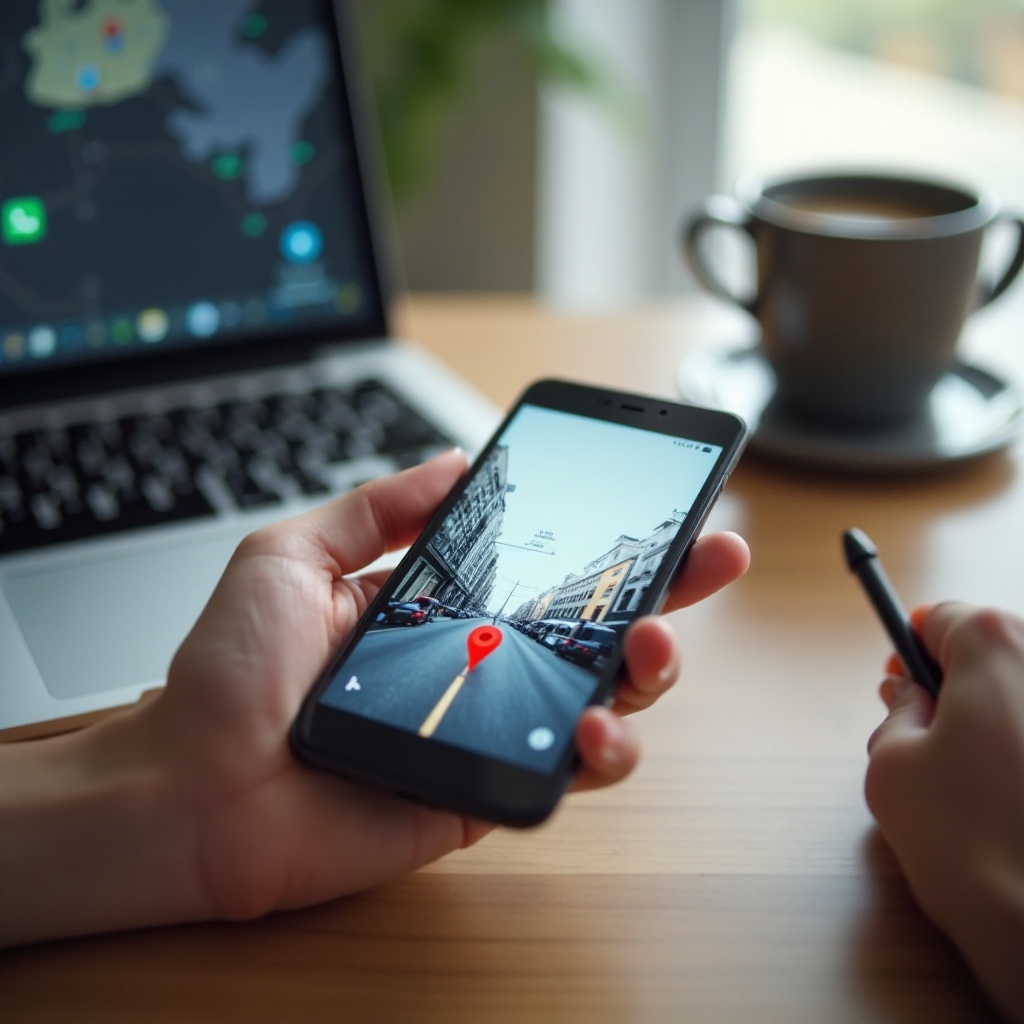
What Sending a Pin Means on Android and the Fastest Way to Do It
On Android, sending a pin usually means sharing a Google Maps link to a specific latitude and longitude. That link works across Android, iPhone, and desktop. You can send a one time pin that marks a fixed point, or share live location that updates as you move for a set period.
If you want the shortest path from need to send to sent, do this:
1) Open Google Maps.
2) Long press the exact spot on the map to drop a red pin.
3) Tap Share on the location card.
4) Choose your messaging app or copy the link.
A one time link is best for static destinations. Live sharing helps when both people are moving or the venue is crowded. Before you share, a quick setup ensures your blue dot is accurate and your pins land exactly where you intend.
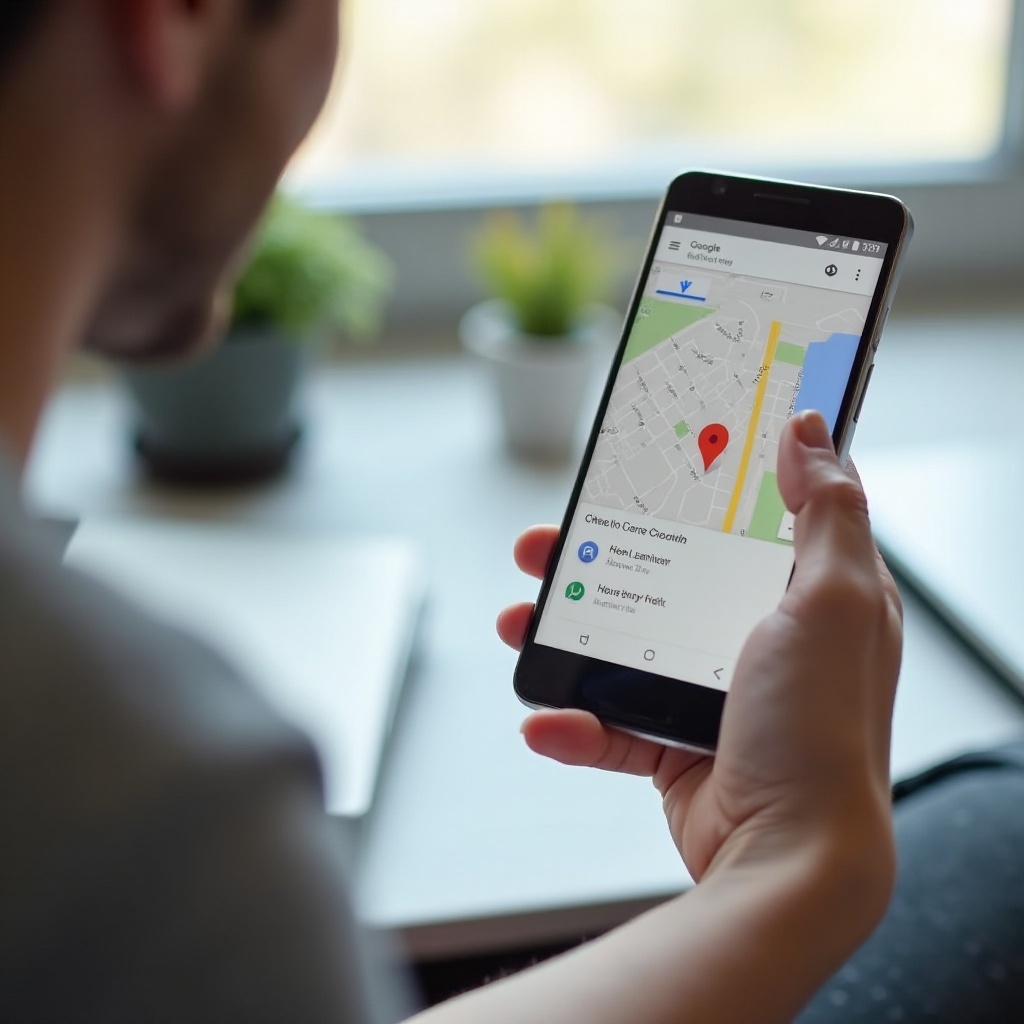
Before You Start: Permissions, GPS Accuracy, and Quick Setup
Good pins start with an accurate position and the right app permissions. A few minutes here save you from wrong turns later.
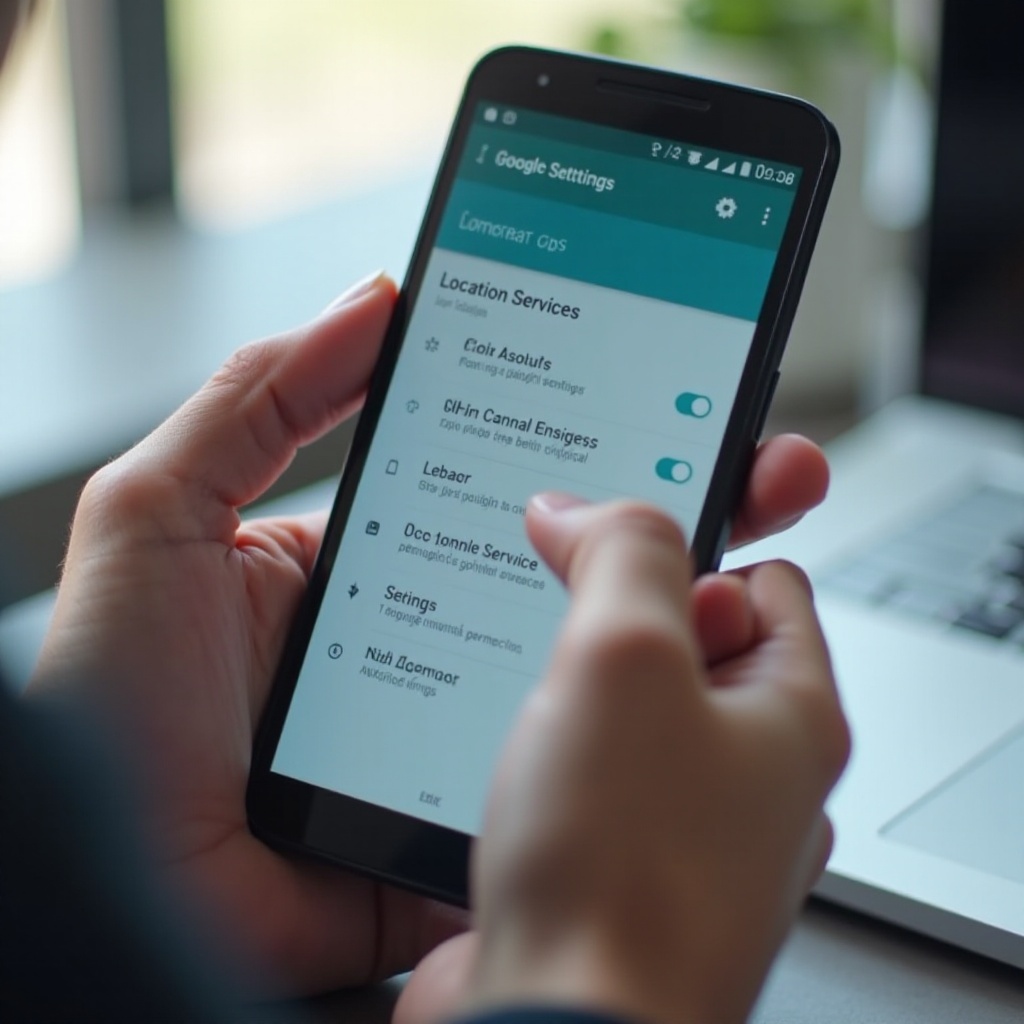
- Turn on Location: Go to Settings, then Location, and switch it on. For Google Maps, give location permission while using the app. If you plan to share live location from Maps, set it to allow all the time.
- Improve accuracy: In Settings under Location services, enable Wi Fi and Bluetooth scanning. These scans improve location indoors and in dense cities.
- Calibrate the compass: Open Google Maps and move your phone in a figure eight until the blue location beam narrows. This helps the map face the right way.
- Check data: Links need internet to send. If signal is weak, plan by downloading offline maps and consider using coordinates or Plus Codes for text messages.
- Update apps: Update Google Maps and your chat apps in the Play Store to avoid link glitches and permission bugs.
- Battery settings: Turn off extreme battery saver and allow background activity for Maps and your chat app when sharing live location so updates do not pause.
With your phone tuned up, you are ready to send a clean, precise pin right from Google Maps.
Method 1: Send a Pin from Google Maps
Google Maps provides the most consistent way to drop and share a precise location across devices. It is the best starting point for nearly every situation.
Drop a pin at your current location
1) Open Google Maps and wait until the blue dot locks onto your current position.
2) Tap the blue dot to open your current location card.
3) For a one time pin, tap Share and pick your app or copy the link. For live sharing, tap Share location and choose a duration.
Tips:
– If the blue dot looks off or drifts, step into open sky, turn on Wi Fi for indoor assistance, and recalibrate the compass.
– A one time pin suits immediate meetups like cafe tables or curbside pickup.
Drop a pin anywhere on the map
1) Open Google Maps and find the area.
2) Long press the precise spot to drop a red pin, especially useful where no street address exists.
3) Swipe up on the location card if needed and tap Share.
4) Choose your messaging app or copy the link to paste anywhere.
This shines for trailheads, park benches, street markets, or festival gates.
Label, save, and share via link or Nearby Share
- Label or save: After dropping a pin, tap Save or add a label. A short name like Meet here helps your recipient.
- Share link: Tap Share to send via Messages, email, or other apps. Tap Copy to clipboard to paste the link in any text field.
- Nearby Share or Quick Share: If the person is beside you, share the pin link device to device for faster and more reliable delivery.
Once you master one time pins, consider when live location gives you more clarity.
Method 2: Share Live Location vs. One Time Pin
One time pins are perfect for destinations; live location is best when you need to find each other while moving. Picking the right mode reduces confusion and messages back and forth.
One time pin vs. live location: when to use each
- One time pin: Use this for fixed meetups like a restaurant table, a specific parking spot, or an apartment entrance.
- Live location: Use this in large or crowded venues, during events, or when both parties are traveling and need to converge in real time.
Choose duration and stop sharing
In Google Maps and many chat apps, you select how long your live location is visible. You can stop sharing at any time from the location sharing panel. A short duration like 15 to 60 minutes keeps control and reduces exposure.
Share live location from Maps and WhatsApp
- Google Maps: Tap your profile picture or initials, choose Location sharing, then New share. Pick a duration or share until you stop. Select contacts or an app to send the live link.
- WhatsApp: Open a chat, tap the attachment icon, then Location. Choose Share live location, set a duration, add a note if needed, and send.
If live tracking is not required, a single pin from Maps or a chat app keeps things simple and private.
Method 3: Send a Pin in Google Messages (RCS or SMS)
Google Messages ties into Maps so you can send location without switching apps. It is handy when you chat by default in Messages or when you want a clean map card inside the conversation.
Attach location in Google Messages
1) Open Google Messages and choose a conversation.
2) Tap the plus or attachment icon and select Location or Maps.
3) Choose Current location to send where you are, or search for a place and select it for a pin.
4) Send. The recipient sees a map card they can tap to open and navigate.
If Location is not visible, share from the Maps app and pick Messages in the share sheet.
Paste a Google Maps link, Plus Code, or coordinates
- Maps link: In Maps, drop a pin, tap Share, then Copy link. Paste this into Messages.
- Plus Code: Tap the pin card and copy the Plus Code, a short location code such as CWC8+W5. Paste it into your chat if links break or you expect spotty data.
- Coordinates: Copy latitude and longitude (for example, 37.4219, -122.0840) from the pin card and send them as plain text. The recipient can paste these into any map app.
Next, learn how to do the same inside popular third party chat apps when your friends use a different platform.
Method 4: Send a Pin in WhatsApp, Telegram, Facebook Messenger, and Signal
Most chat apps let you share a one time pin and live location directly within the chat. Use the app your group prefers so everyone receives the location quickly.
WhatsApp: current vs. live location
1) Open the chat and tap the attachment icon.
2) Choose Location.
3) Pick Send your current location for a one time pin, or Share live location for real time tracking with a duration.
4) Send. Your contact receives a map card.
Telegram and Signal: precise location share
- Telegram: Open a chat, tap the paperclip, and choose Location. Send my current location for a pin, or Share my live location for movement. You can also search for a place and send that location.
- Signal: Open a chat, tap plus or attachment, then Location. Send your current location or search and pick a spot to share.
Facebook Messenger: send a location card
1) Open a chat and tap the plus menu or location icon.
2) Share your current location or choose a place on the map.
3) Send the card so recipients can tap and open directions.
If none of these apps is available or you have no data, you can still share exact locations by preparing offline options.
Method 5: Share a Pin Without Internet (Offline Maps, Coordinates, Plus Codes)
No signal does not mean you cannot share where to meet. With offline maps or simple text, you can guide someone to the right spot.
Download offline maps for no data areas
1) Open Google Maps and tap your profile picture.
2) Choose Offline maps and select your region to download.
3) When offline, you can still view the map, drop pins, and save places. Once you reconnect, share the saved location with a link.
Share Plus Codes or coordinates via SMS
- Plus Codes: Drop a pin when you have service and note the short code, for example CWC8+W5. Text this code if data is weak. It resolves to an exact point.
- Coordinates: Send latitude and longitude as plain numbers, like 37.4219, -122.0840. The recipient can paste them into any map app.
- Practical text: Send a simple line such as Meet here: 37.4219, -122.0840 or Meet here: CWC8+W5.
Once you regain a connection, send a standard Maps link for one tap directions.
Method 6: Share Indoor Pins (Malls, Airports, Stadiums)
Large venues can be tricky because they have multiple floors and entrances. Your pin and message should include enough guidance to get the person to the exact spot.
Share indoor pins in multi level venues
- Zoom in on the venue in Google Maps.
- Use the floor selector when available to pick the right level.
- Long press the exact spot on that floor to drop a pin and share it.
Use landmarks and meeting spots for clarity
- Add context such as North entrance, level 2, near Gate B, or food court corner.
- Label the pin as Meet here and include a short note in your message so your friend knows what to look for.
After you place precise pins, make them part of your plans by adding them to calendar events and email invites.
Method 7: Add a Pin to Calendar Events and Email Invites
When everyone gets the same event invite with a map location, meetups run on time and involve fewer texts.
Add a pin to a calendar event and share
1) In Google Maps, drop a pin and tap Share, then Copy link.
2) Open Google Calendar, create an event, and add the location by pasting the link or searching for the place.
3) Invite guests. They receive the event with the exact map point.
Email a pin with directions and meet up details
- Paste the Maps link into your email along with practical notes such as Park on level 3 or Use the south gate.
- Include time, landmarks, and any access instructions. Clear directions reduce confusion and late arrivals.
Now that you can send pins and add them to invites, make sure recipients know how to open and use them on any device.
How Recipients Open and Use Your Pin (Android, iPhone, Desktop)
Good pins should be easy to open and save for later. Here is what your recipients will see and do.
Open and navigate on Android and iPhone
- Android: Tap the link, open in Google Maps, tap Directions, then Start to begin navigation.
- iPhone: Tap the link and it opens in Google Maps if installed or in a browser. If Apple Maps opens, it still provides directions. If they prefer Google Maps, they can install it or choose the option to open in Google Maps when prompted.
Open on desktop and save to lists
- Desktop: Click the link to open the location in a web browser. They can click Save to add it to Favorites or a custom list.
- Re share: Recipients can copy the link from the browser or click Share on the map page to pass it to others.
Once your recipient workflow is smooth, think about privacy before you share more location details.
Privacy and Safety Tips for Sharing Location Pins
Treat location like any other sensitive information. Share with people you trust and only for as long as needed.
Limit who sees your location and for how long
- Prefer one time pins for fixed destinations.
- Use live location only when necessary and set short durations.
- Avoid posting pins publicly unless it is a public venue intended for sharing.
Hide home location and revoke access
- Do not share a pin labeled with your home or personal places in a public or group chat.
- When done with live sharing, stop it from the location sharing panel in Maps or the chat app.
- If you share a list of places, remove private spots before sending.
If a pin sends the wrong place or a link refuses to open, simple checks usually fix the issue fast.
Troubleshooting: Pins Will Not Send, Wrong Location, or Link Issues
When location sharing misbehaves, narrow the problem down to Maps, messaging, or your connection. Then work through quick fixes.
Fix permissions, GPS accuracy, and app updates
- Location permission: Go to Settings, Apps, Maps, Permissions, then Location. Set to Allow while using the app or Allow all the time for live sharing.
- Improve accuracy: Turn on Wi Fi and Bluetooth scanning and recalibrate the compass in Google Maps.
- Updates: Update Google Maps, Google Play services, and your messaging app to the latest version.
Clear cache, reset network, or use coordinates
- Clear app cache: Settings, Apps, Maps, Storage, then Clear cache. If issues persist, Clear storage and sign in again.
- Reset network settings if messages or links fail to send or open.
- Use coordinates or Plus Codes as a fallback when long links break or get truncated.
Recipient side issues and link opening defaults
- Ask the recipient to update their maps app or try a different browser.
- Have them set Google Maps as the default for map links if they want it to open there.
- If RCS chat features fail in Google Messages, send as SMS or switch apps such as WhatsApp or Signal.
With the basics stable, small optimizations can make pin sharing even faster and clearer.
Pro Tips: Plus Codes, Short Links, QR Codes, and Nearby Share
A few advanced tricks save time for regular meetups and group events.
Use Plus Codes, short links, and QR codes
- Plus Codes: Ideal for places without clear street addresses. They work online and offline and are short enough for voice calls and SMS.
- Short links: If your app breaks long links, consider a reputable URL shortener. Share the shortened link where character limits apply.
- QR codes: Create a QR code for a location page and add it to printed invites, event pages, or signs. Guests can scan to open directions.
Nearby Share and Quick Share for local sharing
- If the recipient stands next to you, use Android based device to device sharing to send the pin link without relying on a weak network.
- This reduces typos and preserves the full link with all parameters.
Create meeting pins and starred places
- Save frequent meetup spots to a dedicated list in Google Maps, such as Friends meetups or Client parking.
- Share the list once with your group so everyone keeps accurate pins for future plans.
Conclusion
So, how do you send a pin on Android? The simplest method is to drop a pin in Google Maps and share the link through your favorite chat app. When you need to track movement, switch to live location in Maps or in chat apps like WhatsApp. If internet access drops, rely on offline maps, Plus Codes, or plain coordinates sent by text. Respect privacy by limiting who sees your location and how long they can see it. When problems appear, quick checks for permissions, accuracy, and app updates usually fix them.
With these practical steps, you can send precise location pins in seconds, help friends arrive without confusion, and coordinate meetups with less back and forth. Master the basics, keep your tools updated, and lean on pro tips like Plus Codes and QR codes when you plan events. Accurate pins lead to smoother meetups every time.
Frequently Asked Questions
How do I send a pin from Google Maps on Android?
Open Google Maps and long-press the exact spot to drop a red pin. Tap Share on the location card, then pick your messaging app or Copy link and paste it into a chat. To share where you are right now, tap the blue dot and choose Share to send a one-time link, or choose Share location to send live location for a set duration.
How do I share my location on Android without internet?
Download Offline maps in Google Maps ahead of time. When you are offline, drop a pin and save it, then share the link once you reconnect. If you must share immediately with no data, send plain text coordinates (like 37.4219, -122.0840) or a Plus Code (such as CWC8+W5) via SMS. The recipient can paste either into their map app to navigate.
Why can’t I send a location pin on Android and how do I fix it?
Enable Location in Settings and grant Maps location permission. Update Google Maps, Google Play services, and your chat app. Improve accuracy by turning on Wi‑Fi/Bluetooth scanning and recalibrating the compass. If links fail, clear the Maps cache, reset network settings, or send coordinates/Plus Codes as a fallback. Ask the recipient to update their maps app or try another browser if the link won’t open.