Introduction
You want your iCloud memories on your Android phone, and you want them now. This guide shows you how to download iCloud photos on Android with clear, safe steps. You will learn a direct browser method, a phone-only bridge through Google Photos, a fast computer-assisted path for big libraries, and a Samsung-only option via Smart Switch. You will also see how to handle ZIP archives, HEIC images, Live Photos, and high-efficiency videos without losing quality.
Each method solves a different problem, so work from simple to advanced. If you only need a handful of shots, start with your Android browser. If you still have an iPhone and want a smooth sync, use Google Photos. If you plan to move thousands of items, a computer saves time. Samsung users can try Smart Switch for a native import. First, do quick prep to avoid errors, stalls, and duplicates.
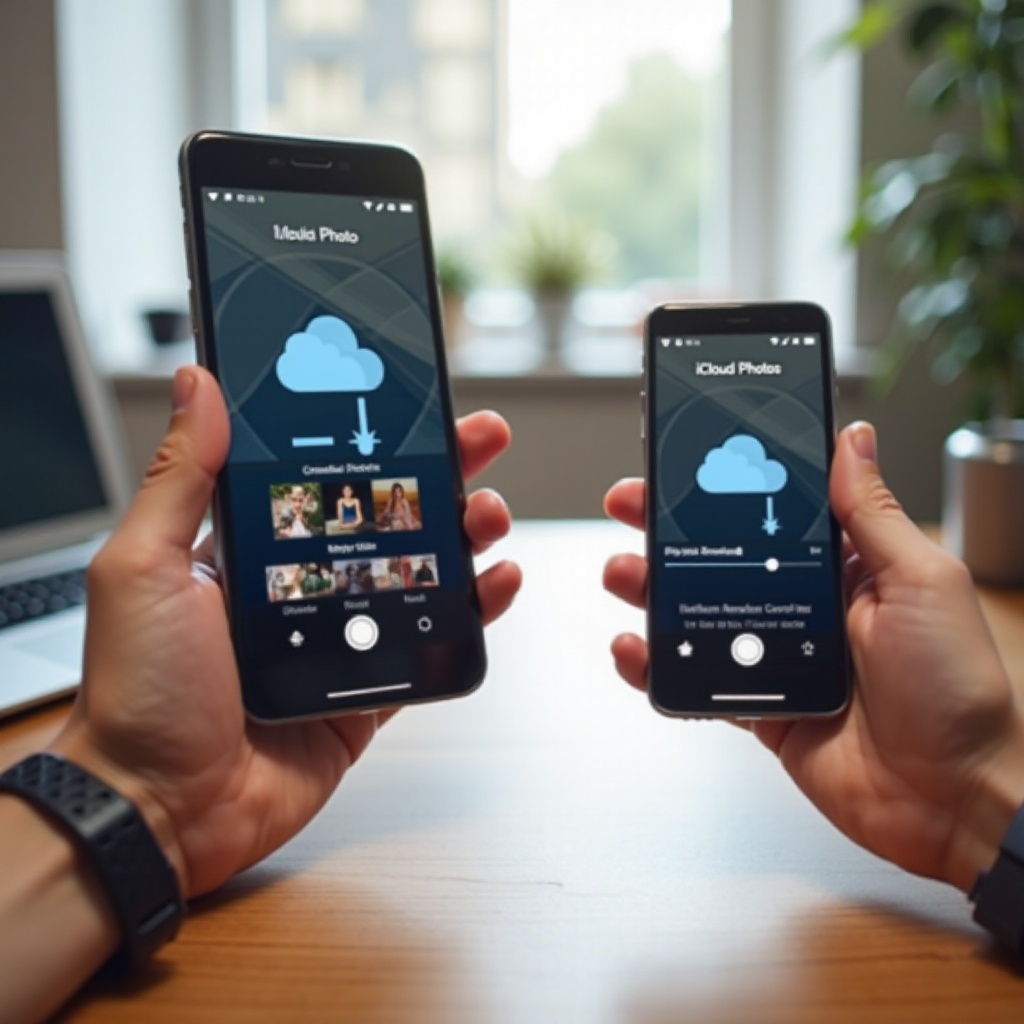
What You Need Before You Start
A few minutes of setup prevents most problems and speeds up every transfer method below.
Check storage and Wi‑Fi on your Android phone
Open Settings and review Storage. Confirm you have enough room for photos and videos you plan to copy. If space is tight, trim downloads, offload large videos to a cloud drive, or insert a microSD card if your phone supports it. Next, connect to stable Wi‑Fi. Large albums and 4K videos need bandwidth; a strong signal reduces timeouts and failed downloads.
Checklist:
– Target free space that comfortably exceeds your estimated download size.
– Use a fast, stable Wi‑Fi network and keep the screen on during large downloads.
– Plug in your phone for long sessions to avoid battery drain.
Prepare your Apple ID and two‑factor authentication
You will sign in to iCloud with your Apple ID. Keep your trusted device nearby for two‑factor codes. If you no longer have your iPhone, make sure you can receive codes via your trusted phone number. Confirm your Apple ID login at the Apple ID site before you start. This simple check saves time when the actual transfer begins.
Update your browser and file manager apps
Update Chrome or Samsung Internet to the latest release for better compatibility with iCloud web apps. Install or update a file manager such as Files by Google and a ZIP utility like RAR if your phone lacks a built‑in extractor. With these basics ready, you can begin with the most direct method: downloading from iCloud.com on your Android device.
Method 1: Download from iCloud.com on Android
This method is best for smaller batches or when you need a few albums. It works entirely on your phone.
Sign in to iCloud.com and pass two‑factor authentication
- Open your Android browser and go to iCloud.com.
- Sign in with your Apple ID and password.
- Approve the sign‑in with your two‑factor code.
- If the site asks to trust the browser, allow it only on your personal phone.
Switch to desktop site if needed and open Photos
If the interface looks limited, open the browser menu and enable the desktop site. Tap Photos and wait for your library to load. Use albums or search to find your items. Tap the checkmark to select items. For faster selection, open an album and select all when available, then deselect anything you do not need.
Select and download single or multiple photos/videos
For one item, select it and tap the download icon. For many items, select them first, then tap download. Keep the browser in the foreground while the download runs. Most phones save files to the Downloads folder. Larger batches may take time and work better in chunks.
Download albums as ZIP files for bulk transfers
When you download entire albums or very large selections, iCloud creates a ZIP archive. This speeds delivery and keeps files together. The ZIP appears in your Downloads. If the archive is huge, split the album into smaller sets to avoid timeouts.
Save to DCIM/Pictures so your gallery apps can see them
After the download finishes, open your file manager, then move files from Downloads to DCIM or Pictures. Gallery apps like Google Photos and Samsung Gallery scan these folders by default. Placing your files in the right location helps them appear quickly in your timeline and albums. Next, you will extract any ZIP archives and make your items visible in your gallery apps.
Unzip and Manage Downloads on Android
If your downloads include ZIP archives, extract them cleanly to keep order and metadata.
Use built‑in extractor or Files by Google/RAR
Navigate to Downloads and tap the ZIP file. Many phones offer a built‑in extractor. If yours does not, use Files by Google or RAR. Extract to a new folder under Pictures or DCIM to keep content organized and easy to find.
Keep folder structure and timestamps
Do not rename files during extraction. Preserve the default folder structure so you can rebuild albums later. Avoid aggressive cleanup tools that rewrite metadata; those can change capture dates and scramble sort order.
Make new items visible in Gallery/Google Photos
Open your gallery app. If items do not appear immediately, refresh, clear the app from recent tasks, and reopen it. In Google Photos, check Library and enable backup for the new local folders if you want cloud copies. With ZIP handling covered, you might prefer a path that removes manual downloads entirely. If you still have your iPhone, the next method uses Google Photos as a bridge.
Method 2: Move Your iCloud Photos via Google Photos (No Computer)
This approach uses your iPhone to upload to Google Photos, then you access everything on Android. It avoids ZIPs and manual file moves.
Upload from your iPhone to Google Photos at original quality
- Install Google Photos on your iPhone and sign in with your Google account.
- In Google Photos settings, turn on Backup and choose Original quality for full resolution.
- Keep the app open on Wi‑Fi and leave the phone charging during long uploads.
- Confirm progress by checking recent items in Google Photos on the iPhone.
Sign in on Android and verify your library
Install Google Photos on your Android phone and sign in with the same account. As uploads finish, photos and videos appear on your Android automatically. Use search and albums to confirm counts and spot‑check key memories. This is the smoothest phone‑only path for large libraries when you still have the iPhone in hand.
Handle duplicates and storage limits
Monitor your Google account storage. Original quality uploads consume space quickly. If you hit the limit, upgrade storage or upload in phases. Google Photos tries to avoid duplicates, but not perfectly. After migration, use the built‑in tools to clean up duplicates and free space. If you do not have the iPhone or want full control, use a computer for the bulk move.
Method 3: Use a Computer for Faster, Full‑Resolution Transfers
A computer helps when you must move many years of photos and want precise control over folders and metadata.
Download originals from iCloud for Windows or iCloud.com
On Windows, install iCloud for Windows, enable Photos, and download originals to your PC. On Mac or PC, you can also log into iCloud.com and download albums in batches. Choose unmodified originals when options appear. Verify item counts and open a few files to check quality and metadata.
Transfer to Android via USB cable or cloud drive
- Connect your Android phone to the computer via USB.
- Set the phone to File Transfer (MTP) mode.
- Copy photos into DCIM or Pictures. Keep folder names simple and consistent.
- Safely eject the phone, then confirm items show up in your gallery.
If you prefer cloud, upload to Google Drive or OneDrive on your computer, then download on your phone. USB usually transfers faster and avoids extra compression.
Preserve dates, albums, and metadata
Do not rename files during copy. Many apps rely on embedded EXIF data for the proper timeline. Some information, like favorites and edits, may not move. Export edited versions from iCloud if you want those exact looks. If you own a Samsung Galaxy and want a direct path without a computer, Smart Switch can pull from iCloud as well.
Method 4: Samsung Galaxy Option with Smart Switch from iCloud
Samsung Smart Switch can sign in to iCloud and bring your photos into Samsung Gallery in a few taps.
Connect with your Apple ID inside Smart Switch
Open Smart Switch on your Galaxy. Tap Receive data, choose iPhone or iPad, then select the option to get data from iCloud. Sign in with your Apple ID and approve the two‑factor code. The app scans your iCloud account and lists items it can transfer.
Choose photos/videos and start the import
Select Photos and Videos and start the transfer. Keep your phone unlocked, on Wi‑Fi, and plugged in during long imports. Smart Switch saves items into your Gallery, where they appear alongside your existing Android photos.
Limitations, speed tips, and troubleshooting
Smart Switch may skip some edits or the motion part of Live Photos. Very large videos might transfer slowly. If the process stalls, retry in smaller chunks or restart the app. For missing items or failed imports, use the computer method or download from iCloud.com. Once your photos arrive, it helps to know how their formats behave on Android.
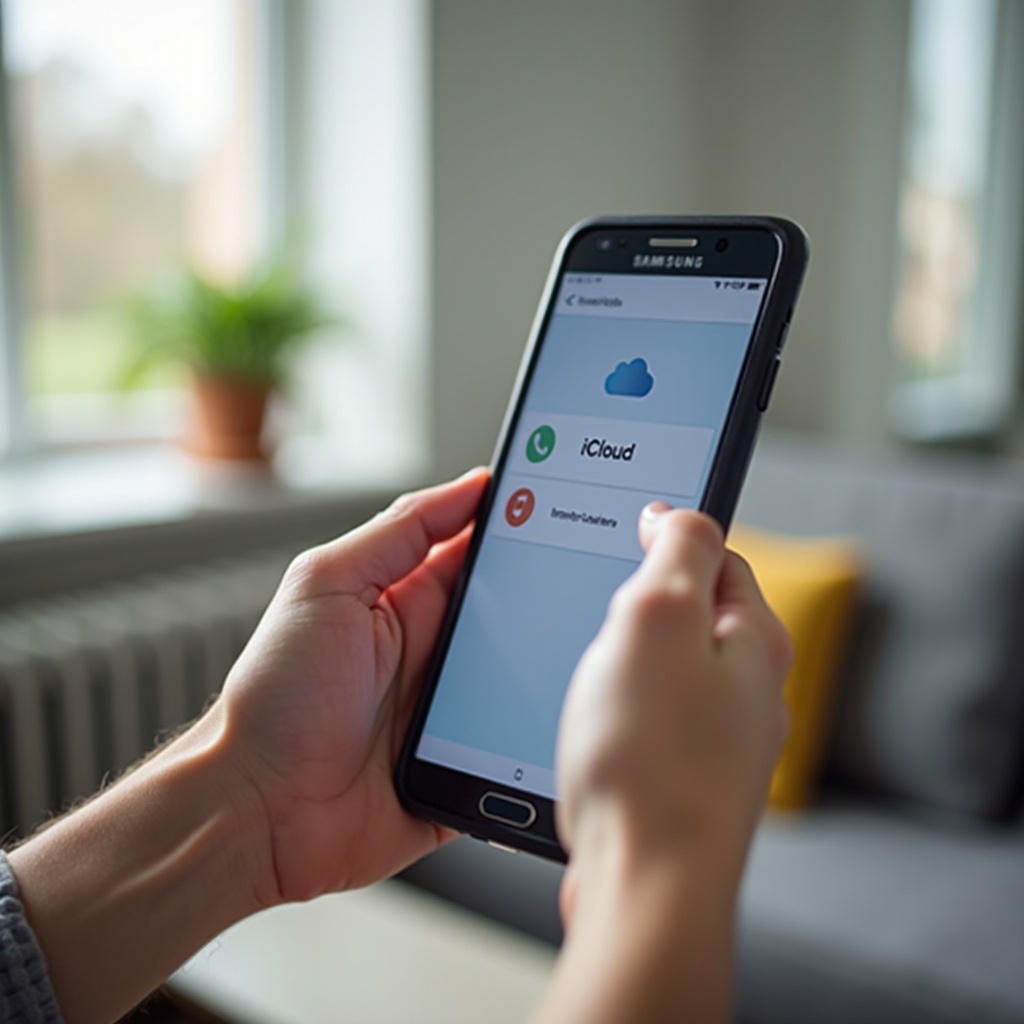
File Formats and Quality Considerations on Android
Not all iPhone formats behave the same on Android. Understanding them prevents surprises.
HEIC vs JPG: convert or keep originals
Many recent Android phones support HEIC. Keeping HEIC preserves quality and saves space. If your apps do not open HEIC, convert only the photos you need to share widely. You can convert with Files by Google, your gallery app, or an offline converter. Avoid mass conversion unless required, since it increases storage use and adds processing time.
Live Photos and motion clips on Android
A Live Photo includes a still image plus a short video. After transfer, you may see a still file and a separate video file. Most Android gallery apps do not merge them into a single animated item. Decide if you want to keep both for motion, or keep only the still for a cleaner library. Some third‑party apps can play Live Photo pairs if you want a similar effect.
ProRAW, HDR, and HEVC playback support
ProRAW files are large and may need advanced viewers or editors on Android. Convert to DNG or JPG on a computer if your phone cannot open them. HEVC videos work on most modern Android devices; older phones may struggle. If playback stutters, transcode those videos to H.264 using a desktop converter. With formats in hand, organize and back up your new library so you do not lose progress.
Organize and Back Up After Downloading
A simple structure keeps your memories easy to find and safe across devices.
Google Photos vs Samsung Gallery vs OneDrive
Pick one cloud backup system and stick with it. Google Photos offers powerful search and cross‑platform access. Samsung Gallery integrates tightly with Galaxy phones and can sync with OneDrive. OneDrive pairs well with Windows PCs and Microsoft 365. Choose the ecosystem that fits your devices and budget, then turn off competing auto‑backup options to prevent duplicates.
Recreate albums and favorites efficiently
Albums rarely migrate perfectly. Rebuild your most important albums first: Family, Trips, Events, Work, and so on. Use batch selection to speed up sorting. If you exported album folders from a computer, mirror that structure in your gallery. For favorites, filter by star or heart where supported. If you used keywords in EXIF on a computer, search by those tags to regroup quickly.
Avoid duplicates and keep one backup system on
Duplicates waste storage and clutter timelines. Use only one app for automatic backup on your phone. Run the duplicate finder tools in Google Photos or third‑party scanners if needed. When you move files between DCIM and Pictures, avoid creating multiple copies in different folders. With your library tidy, you are ready to tackle any lingering issues.
Troubleshooting Common Problems
Most issues come from sign‑in trouble, giant archives, or low storage. These quick fixes solve the majority of cases.
Can’t sign in to iCloud or 2FA not appearing
Check your Apple ID status on the Apple ID site. Confirm your trusted phone number receives messages. Request a new code if the first does not arrive. Clear your Android browser cache and try again. If problems persist, sign in from a desktop to ensure there are no account alerts, then return to your phone and retry.
ZIP downloads fail or won’t extract
Huge ZIP archives can time out. Download in smaller batches and keep your screen on. Confirm stable Wi‑Fi and sufficient free storage before extracting. If an extractor fails, try a different app and re‑download the archive. Corrupted ZIPs often result from incomplete downloads.
Missing items or wrong dates after transfer
Some apps sort by file modified time instead of capture date. Use timeline options that prefer date taken when available. Search by filename to confirm items exist under a different date. If specific albums are missing, return to iCloud and re‑download those selections. Never delete items from iCloud until you verify your Android copies and backups.
Not enough storage on your phone
Free space by moving large videos to a microSD card or a cloud drive. Delete temporary ZIP archives after extraction. Transfer in waves: download a set, verify it, back it up to your chosen cloud, then clear space and continue. With problems managed, finish with a quick privacy check.
Privacy and Security Best Practices
A few simple steps protect your accounts and your device after the transfer is complete.
Sign out of iCloud and clear browser data
When finished, sign out of iCloud.com. In your browser settings, clear cookies and cached data for iCloud. This prevents someone else from opening your session on a shared device.
Revoke sessions and manage trusted devices
Visit the Apple ID site to review devices and active sessions. Remove any you do not recognize or no longer use. Clean up trusted phone numbers to keep two‑factor codes in safe hands.
Delete temporary archives once verified
After you confirm your photos are safe in your gallery and, if enabled, in your cloud backup, delete ZIP archives and any duplicate folders. This frees space and reduces risk if your phone is lost. You are now ready to enjoy your iCloud memories on your Android.
Conclusion
You have multiple safe ways to download iCloud photos on Android. The browser method is perfect for quick grabs and small albums. Google Photos offers a smooth bridge if you still have your iPhone and want automatic sync. A computer gives you the fastest, most controlled bulk transfer. Samsung users can rely on Smart Switch for a native import experience.
Choose the method that matches your situation, keep your files in DCIM or Pictures, and pick one cloud service for backup. Handle HEIC, Live Photos, and HEVC with the simple tips above. Verify each batch before deleting anything from iCloud. With a little preparation and these steps, your entire photo history will live comfortably on your Android phone, ready to browse, share, and back up with confidence.
Frequently Asked Questions
Will downloading to Android remove my photos from iCloud?
No. Downloading creates copies on your Android device. Your photos remain in iCloud until you delete them from iCloud Photos or the iCloud website. Always verify that files appear on your Android and in your chosen backup app before you remove anything from iCloud. If you plan to downgrade your Apple storage plan, keep a second backup in Google Photos, OneDrive, or on an external drive first.
How do I convert HEIC photos to JPG on my Android phone?
Most recent Android phones open HEIC without trouble. If an app requires JPG, convert only what you need. Use Files by Google, your gallery app export tool, or an offline converter. Converting everything increases storage use and adds time. Keep HEIC for your personal archive to preserve quality and convert to JPG only for sharing or specific apps that cannot read HEIC.
Can I transfer iCloud photos without using my Apple ID or two‑factor authentication?
Direct access to iCloud Photos requires your Apple ID and two‑factor authentication for security. If you want to avoid signing in on your Android browser, use your iPhone to upload your iCloud Photos to Google Photos, then sign in to Google Photos on Android. That still uses your Apple ID on the iPhone but removes the need to log into iCloud on your Android device.