Introduction
Fingerprints, smudges, and dust make any MacBook look tired and feel unhygienic. The wrong cleaner or a heavy hand can scratch coatings, push liquid into keys, or leave a hazy film on the display. You can avoid all of that with a simple, safe routine that uses the right supplies and gentle technique. This guide shows you exactly how to clean your MacBook screen and keyboard without damage, using clear steps that anyone can follow at home or at work.
You will find a concise supplies list, safety prep, and step-by-step instructions for a streak-free display and a debris-free, sanitary keyboard and trackpad. You will also see what not to do, how to treat special finishes, and how to solve common problems like oily film and sticky keys. The process is quick once you know it. Start with why proper cleaning matters, then gather your tools and prepare your workspace for the safest results.
Why Proper Cleaning Matters for Your MacBook
The right method protects both the look and the lifespan of your device. Misused liquids and harsh chemicals can strip anti reflective coatings and cloud the display. Over wet wipes can drive moisture under keys and damage the butterfly or scissor mechanisms. Paper towels and abrasive fabrics can scratch surfaces and leave lint that clings to static. When you choose safe cleaners and use a light touch, you keep the screen crisp and the keyboard responsive.
You also improve hygiene and comfort. Oils and residue on keys and the trackpad feel sticky, hold dirt, and transfer to your hands. A regular routine prevents buildup, which makes future cleanings faster and more effective. It also reduces the temptation to scrub hard or reach for aggressive sprays. With that goal in mind, the next step is to gather the right tools and supplies so you clean effectively without risk.
Tools and Supplies Checklist
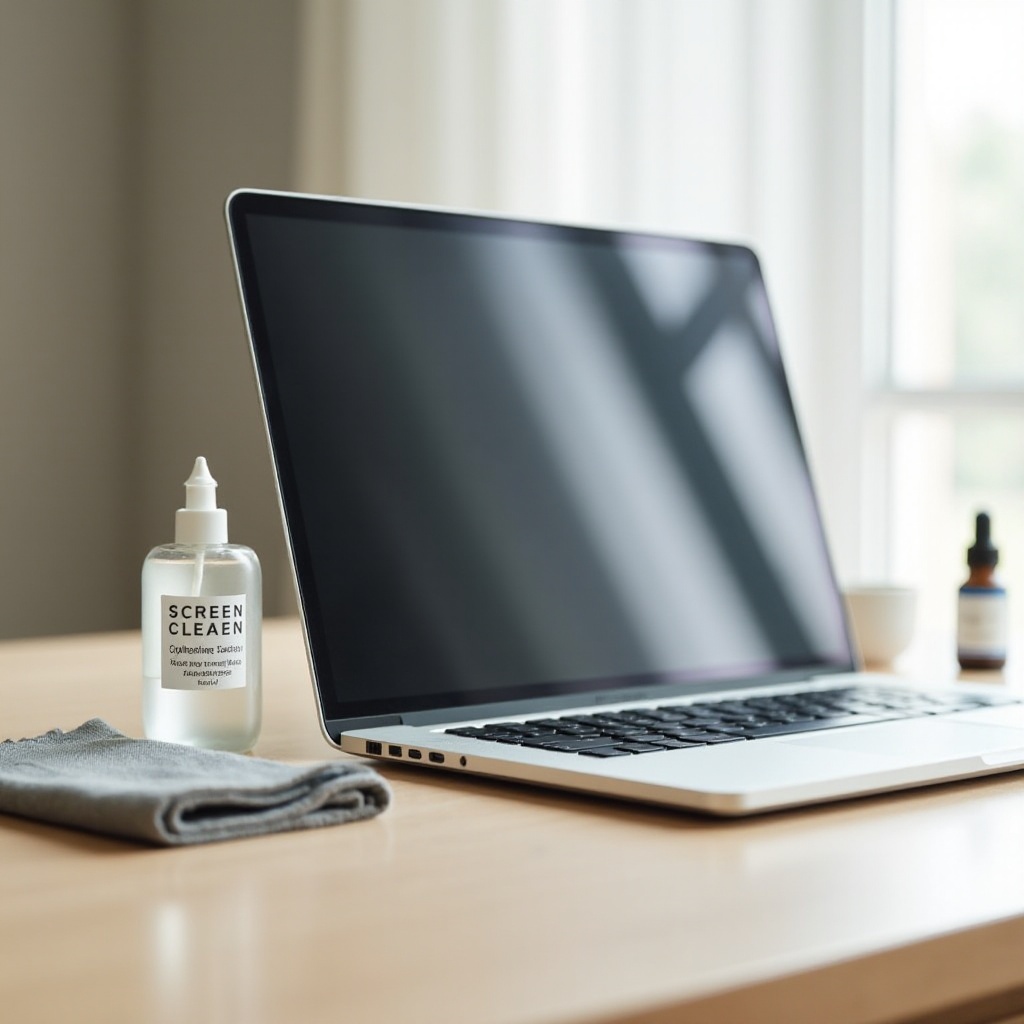
Lint-free microfiber cloths
Use two or more clean, quality microfiber cloths that do not shed. Reserve one cloth for dry dusting and a second for damp wiping and final buffing. Wash them separately from towels to avoid lint, and avoid fabric softeners that can leave films.
Distilled water and 70 percent isopropyl alcohol
Distilled water prevents mineral rings and spots. Keep a small bottle on hand. Seventy percent isopropyl alcohol offers effective disinfection while being less aggressive than stronger solvents. Apply it to a cloth, never directly to the device, and use it sparingly.
Non bleach disinfecting wipes
Choose non bleach, non ammonia wipes approved for electronics. Before wiping, squeeze out excess liquid so the wipe feels damp, not dripping. This limits moisture around seams and key gaps.
Compressed air and soft brush optional
Short, controlled bursts of compressed air lift crumbs from between keys. Always hold the can upright. A soft, clean brush can coax debris toward the edges without scratching the deck.
Screen safe cloth for specialty glass
If your Mac uses nano texture glass, use only the supplied polishing cloth and follow the manufacturer guidance. Do not use sprays or general cleaners on nano texture. If you are unsure, treat the screen as delicate and use distilled water only on a microfiber.
With the right tools ready, you can set up a safe workspace. A few minutes of preparation prevents accidental scuffs, spills, and electrical risks.
Safety and Preparation Before You Start
Shut down, unplug, and disconnect accessories
Power the MacBook off. Unplug the charger. Remove USB devices and external drives. This prevents electrical issues, eliminates static, and keeps cables from snagging while you clean around the edges and hinge.
Protect ports and avoid liquid ingress
Never spray the laptop. Do not drip liquid near the keyboard, speakers, or hinge. Instead, lightly dampen the cloth and keep it only slightly moist. Keep openings upright, avoid pooling around keys, and never wipe a visibly wet surface into seams.
Clean, static free workspace and lighting
Work on a clean, dry table with good light so you can spot streaks and dust. Place a soft towel or mat under the laptop to prevent scratches. Wash your hands, and remove rings or watches that could scuff the finish. This setup makes the next steps smoother and safer.
With safety covered, begin with the display. The screen shows smudges easily, and it benefits most from a gentle, structured approach.
Clean the MacBook Screen: Step-by-Step
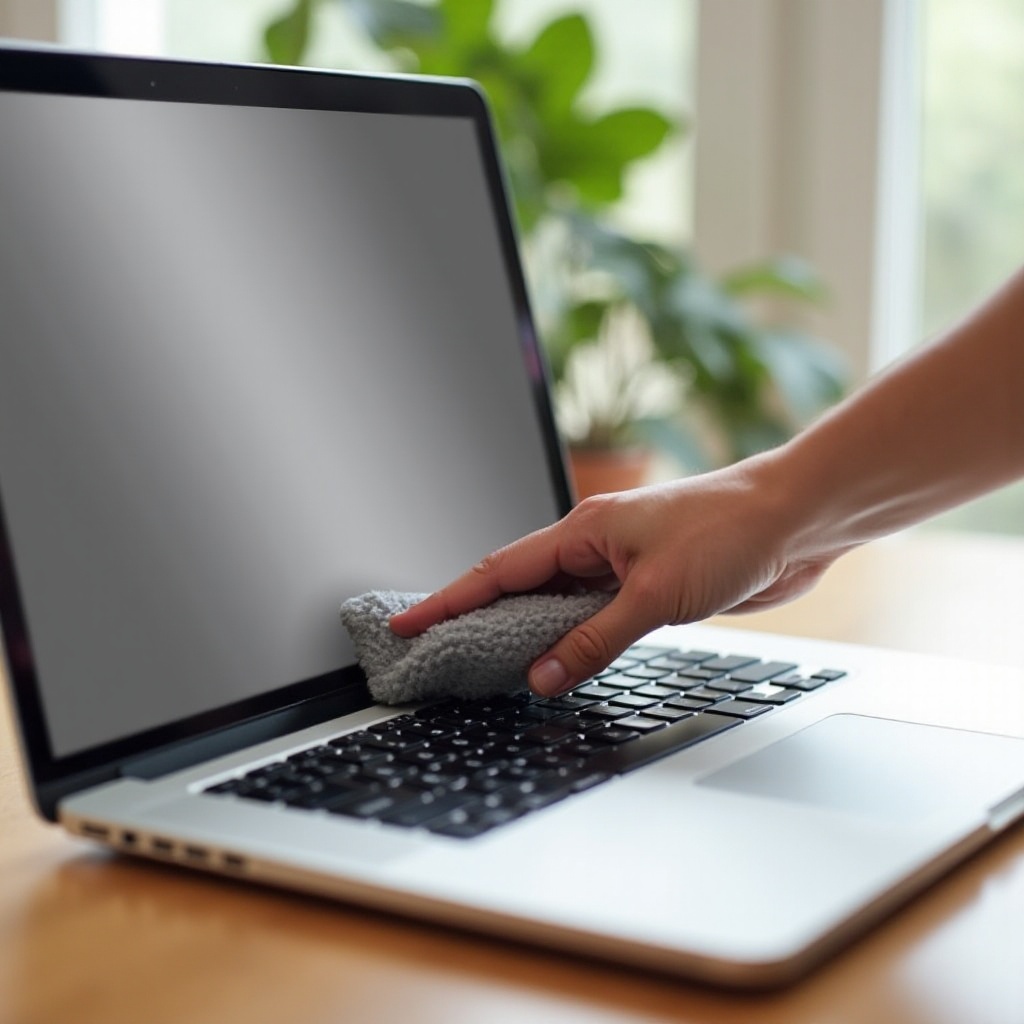
Dry dusting to lift particles safely
- Fold a clean, dry microfiber into quarters for better control.
- Wipe the screen gently in straight horizontal passes from top to bottom.
- Lift the cloth between passes to avoid grinding dust into the glass.
- Do not use pressure. Let the cloth pick up particles rather than pushing on them.
Lightly damp wipe to remove smudges
- Lightly dampen a corner of a second microfiber with distilled water.
- For heavier oils, mix a small amount of 70 percent isopropyl alcohol with distilled water on the cloth.
- Wipe gently in small circles over smudges, then finish with straight passes to even the finish.
- Refresh the cloth as needed so you never drag grime across the panel.
Streak free buffing pattern and pressure control
- Switch to a dry side of the cloth for a final buff.
- Buff with feather light pressure in overlapping passes.
- If streaks persist, re dampen the cloth slightly and repeat. Work patiently rather than pressing hard.
- Inspect from different angles in good light to confirm clarity.
Bezel, camera, and hinge area care
- Use a dry corner of the cloth to dust the bezel and camera area first.
- If needed, barely dampen and wipe around the camera, keeping moisture away from the opening.
- Tilt the display back and dust along the hinge with a dry cloth only.
When the display looks clear and streak free, move to the keyboard and trackpad. Loose debris should come out first so you do not grind crumbs under the keys.
Clean the MacBook Keyboard and Trackpad: Step-by-Step
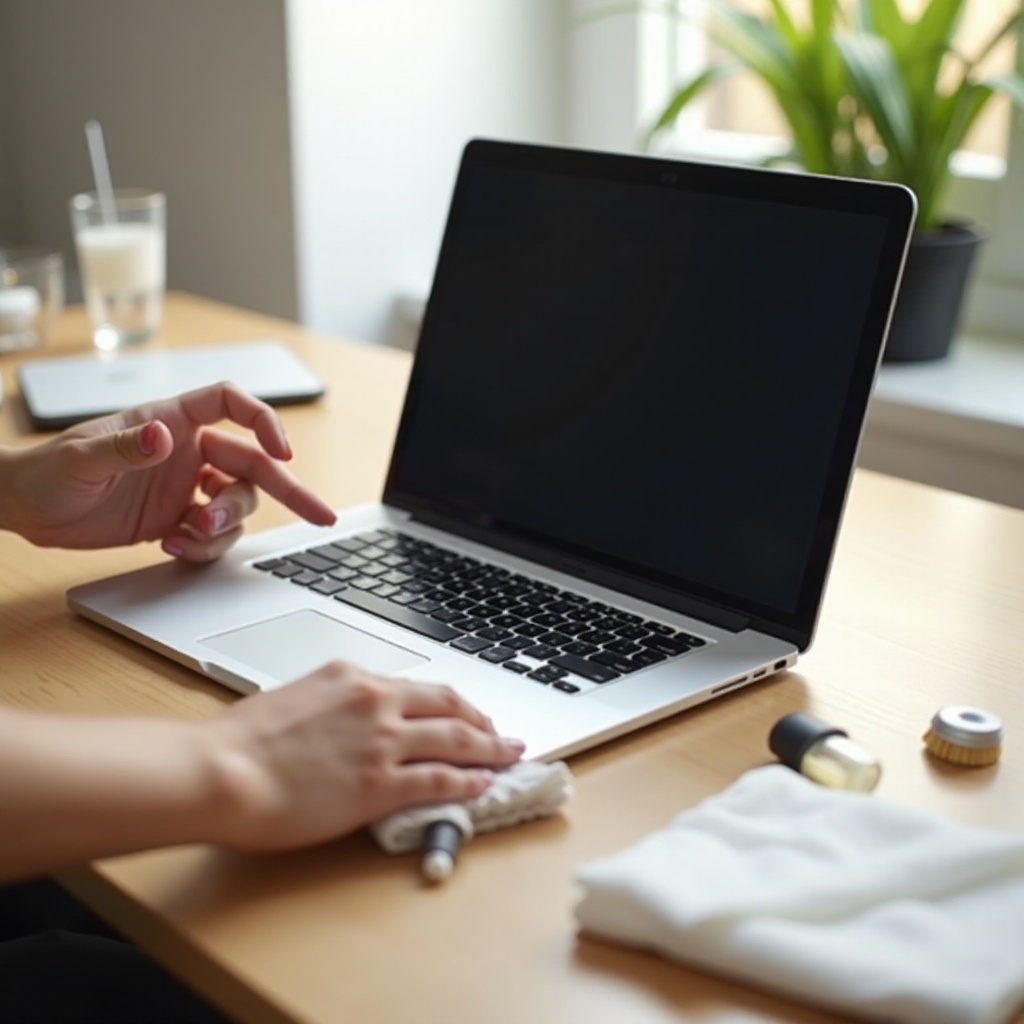
Dislodge crumbs and debris with gentle tapping
- Close the MacBook. Turn it slightly upside down.
- Gently tap and tilt side to side to let debris fall out.
- Open it and brush loose particles toward the edges with a soft brush.
- Avoid shaking aggressively. Gentle movement protects the mechanisms.
Compressed air technique and safe angles
- Hold the can upright to prevent propellant from spraying.
- Use short bursts at a shallow angle across the rows, sweeping left to right, then top to bottom.
- Keep the nozzle a few centimeters away from the keys.
- Avoid continuous blasting, which can force debris deeper or chill components.
Wipe keys, deck, and gaps with minimal moisture
- Lightly dampen a microfiber with distilled water or a small amount of 70 percent IPA mixed with water.
- Wipe key tops and the deck in straight lines. Do not push liquid toward key stems.
- Use a clean, dry cloth to remove remaining moisture immediately.
- Work in small sections so no area stays wet for long.
Trackpad cleaning without harming coatings
- Dampen a clean cloth lightly and wipe the trackpad in smooth strokes from back to front.
- Buff dry with a fresh cloth. Keep liquids away from the edges.
- Avoid harsh solvents that can dull protective coatings and affect tracking.
With crumbs gone and surfaces clean, you can disinfect high touch areas safely. Keep moisture controlled and avoid pooling around seams.
Disinfect High-Touch Areas Without Damage
Alcohol percentages and contact time
Use 70 percent isopropyl alcohol on a damp cloth or a non bleach disinfecting wipe. Wipe high touch surfaces such as keys, trackpad, and the power button. Leave surfaces visibly damp for about 30 to 60 seconds to allow contact time. Do not flood any area.
Where to avoid over wetting and pooling
Do not soak the keyboard. Keep liquids away from trackpad edges, speaker grilles, and ports. If a wipe feels wet, wring it out. Wipe in light passes and lift the cloth often to keep moisture from running along key rows.
Air dry sequence to protect finishes
After disinfecting, allow the device to air dry for about a minute. Then buff the screen and trackpad with a dry microfiber to remove faint streaks and restore clarity. This two step approach leaves surfaces clean and sharp without residue.
Some MacBook models have sensitive finishes and unique parts that need extra care. Treat those areas with specific tools and techniques.
Special Finishes and Model Considerations
Nano texture glass only with the specified cloth
If you have nano texture glass, use only the supplied polishing cloth. If a deeper clean is necessary, lightly dampen that cloth with distilled water only. Do not use alcohol or general sprays on nano texture surfaces.
Anti reflective coatings and older finish care
Newer displays use delicate anti reflective coatings. Avoid ammonia or window cleaners, which can etch and haze the coating. For older models with worn coating, stick to distilled water and very light pressure. Never attack stubborn spots with abrasives.
Touch ID and Touch Bar or function row specifics
Use a barely damp cloth for Touch ID and the Touch Bar or function keys. Wipe in short, gentle passes and dry immediately. Do not let moisture linger along edges or seams, and never drip liquid into the gap between the Touch Bar and the top case.
Even with the right supplies, certain habits can cause damage. Avoid the following mistakes to keep your MacBook in top condition.
What Not to Do: Common Mistakes to Avoid
Never spray liquids directly on the device
Sprays force liquid into seams and ports. Always apply liquid to the cloth, not the MacBook. Keep cloths damp, never dripping, and stop if you see liquid pooling.
Avoid ammonia, bleach, acetone, and glass cleaners
These chemicals can discolor finishes and damage coatings. Skip household window sprays, bleach wipes, acetone, citrus solvents, and abrasive pastes on any surface.
Skip paper towels, abrasives, and high heat
Paper towels and rough fabrics scratch and shed lint. Abrasive pads are off limits. Do not use hair dryers or heat guns to speed drying. Allow the device to air dry instead.
If you still see marks or have sticky keys after a careful cleaning, use targeted techniques to solve the problem without taking the keyboard apart.
Troubleshooting Stubborn Grime and Sticky Keys
Removing oily film and persistent streaks
If a haze remains after cleaning, wash or replace your microfiber. Oils can transfer from dirty cloths. Start fresh with a clean, lightly dampened cloth and buff in alternating directions. Work in sections and finish with a dry buff to even the sheen.
Lifting adhesive or sticker residue safely
Soften residue on the deck by holding a warm, barely damp cloth against it for 15 to 20 seconds. Wipe gently and repeat if needed. For the deck only, a small amount of 70 percent IPA on the cloth helps break down adhesive. Never apply alcohol to the screen for adhesive removal.
Mitigating sticky keys without prying keycaps
Do not pry keycaps. Instead, power off, then dampen a cloth with 70 percent IPA. Wrap it around a thin plastic card and slide gently around key edges. Follow with short air bursts at a shallow angle. Repeat light passes rather than soaking the area. If keys remain unreliable, contact an authorized service provider.
Once you have the MacBook clean and responsive, keep it that way with a simple maintenance plan. Small, consistent habits prevent buildup and reduce deep cleaning time.
Maintenance and Prevention Routine
Weekly and post travel quick clean schedule
Do a quick screen and keyboard wipe once a week. After flights, shared use, or coffee shop sessions, add a disinfecting pass to high touch areas. Frequent light care prevents heavy grime, reduces streaks, and protects delicate coatings.
Hand hygiene, cases, and keyboard covers
Wash hands before use to reduce oil transfer. Clean the inside of sleeves and bags monthly to remove lint and grit that can scratch surfaces. If you use a keyboard cover, remove and wash it often, and check for trapped grit that can mark the display or deck.
Storage habits to reduce dust and lint buildup
Close the lid when not in use. Store the laptop in a clean, dedicated pocket. Keep food and drink away from the keyboard. Use a soft screen cloth between the keyboard and display while traveling to prevent key imprints.
A steady routine, safe supplies, and gentle technique keep your MacBook looking sharp. Wrap up with a quick review of the core principles so you can repeat them with confidence.
Conclusion
A safe cleaning routine protects the look and the lifespan of your MacBook. Use clean microfiber, distilled water, and small amounts of 70 percent isopropyl alcohol on a cloth. Keep liquids off seams and ports, and work with a light touch. Follow the display steps first, then clean the keyboard and trackpad, and finish with a careful disinfecting pass. Treat special finishes gently, and avoid aggressive chemicals and paper towels. Maintain a weekly quick clean and extra care after travel or shared use. With these habits, you will enjoy a streak free display, responsive keys, and a professional finish every day.
Frequently Asked Questions
Can I use 70% isopropyl alcohol on the MacBook screen and keyboard?
Yes, but use it sparingly on a lightly dampened cloth or an approved wipe. Never spray the device. Avoid pooling near keys, ports, or the hinge, and buff dry afterward.
What is the safest way to use compressed air on my MacBook keyboard?
Hold the can upright and use short bursts at a shallow angle across the rows. Keep a few centimeters of distance and sweep in passes rather than blasting one spot.
How often should I clean and disinfect my MacBook?
Wipe the screen and keyboard weekly. Disinfect high-touch areas after travel or shared use. If you work in dusty spaces, perform a quick dust and wipe more often.