Replacing your MacBook Pro battery is an essential skill for maintaining optimal laptop performance and longevity. Whether you’re upgrading an old battery or addressing a power issue, this guide will take you through the steps with care and precision. Let’s start with safety and proceed to replacement and installation to ensure a smooth process.
Safety Precautions Before Removing Your MacBook Pro Battery
Handling electronics requires an emphasis on safety, especially with the sophisticated design of the MacBook Pro. Before diving into the removal process, take these critical precautions:
-
Importance of Data Backup: Before you start, back up your data using Time Machine or any external drive. This step protects against unforeseen data loss during hardware handling.
-
Ensuring a Safe Workspace: Prepare a clean, well-lit area to work, free from clutter and static. Using an anti-static mat is advisable as it reduces the risk of electrostatic discharge that can harm components.
-
Tools Required for Battery Removal: Gather essential tools such as precision screwdrivers, a spudger, and tweezers. Ensure these tools are anti-static to avoid magnetic interference with the internal components of your MacBook.
With these preparations, you are ready to proceed to the detailed process of removing the battery.

Step-by-Step Guide to Removing the Battery
Now that the groundwork is set, let’s move on to removing the battery from your MacBook Pro. Following these steps closely ensures the safety and security of your device:
-
Powering Down and Unplugging Your MacBook Pro: Begin by completely shutting down the laptop. Press the power button until it shuts off, then unplug all peripherals and power sources.
-
Removing the Back Cover: Using the precision screwdriver, carefully remove each screw on the MacBook’s back cover. Note the screws’ positions, as they may differ in size. Gently lift the cover to reveal the internal components.
-
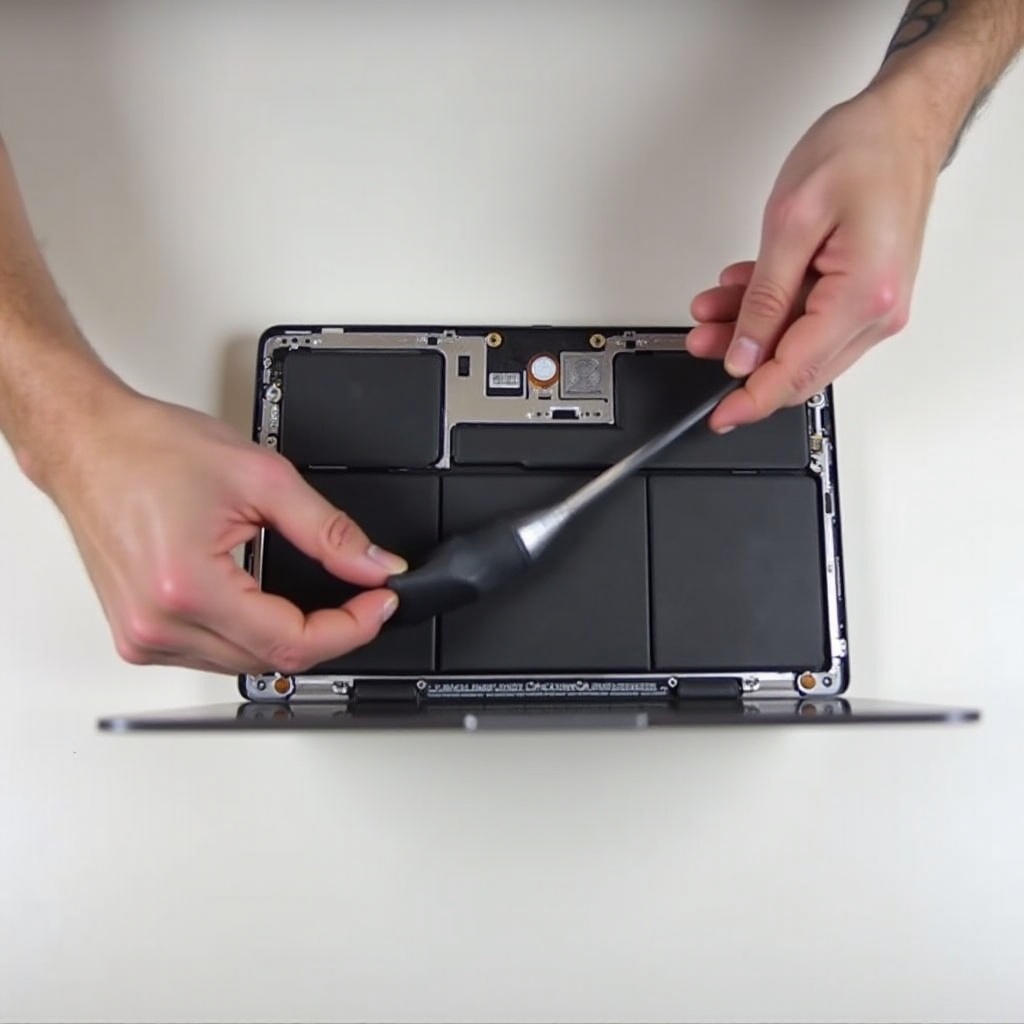
Disconnecting the Battery Connector: Identify the battery connector linking the battery to the motherboard. Use the spudger to carefully detach it, applying gentle pressure to avoid damaging the board or connector.
-
Carefully Lifting and Removing the Battery: Look for the pull tab on the battery. Carefully lift the battery using the tab, ensuring you handle it by the sides to avoid puncturing or damaging it.
Correct handling during these steps protects both your device’s integrity and your safety.
Installing a New Battery
The next phase involves installing a new battery to keep your MacBook running efficiently. Precision during installation prevents future operational issues.
-
Choosing the Right Replacement Battery: Always verify that the new battery is compatible with your MacBook model. Refer to Apple’s specifications or consult your manual for guidance, preventing incompatible battery issues.
-
Step-by-Step Battery Installation Instructions:
- Place the new battery in the compartment, aligning the tabs and connectors correctly.
- Securely reconnect the battery connector to the motherboard. Use your fingers to ensure a snug fit.
- Restore any securing clips and screws to hold the new battery in place.
Reinstalling correctly ensures your new battery functions properly, offering optimal power performance.

Post-Removal Checklist
With the battery replacement complete, it’s essential to verify that all operations restore correctly and the old battery is disposed of responsibly.
-
Safe Disposal of the Old Battery: Always dispose of old lithium-ion batteries at certified recycling centers to avoid environmental harm.
-
Testing Your New Battery Setup: Before reinstalling the back cover, power the MacBook on and check for any unusual startup issues. Confirm that the battery is charging appropriately and that all functions are normal.
Completing these steps verifies a successful replacement and ensures long-term reliability of your device.
Conclusion
With these clear instructions, you’re now well-equipped to replace your MacBook Pro battery safely. Remember that attention to detail and safety is key. If uncertain, seeking professional assistance ensures your device is handled proficiently. Securely reinstalling a high-quality battery rejuvenates your MacBook, prolonging its usability and efficiency.
Frequently Asked Questions
Can I remove the battery if my MacBook Pro isn’t charging?
Yes, ensure the device is powered off and unplugged first. A non-charging issue often points to a battery problem.
What should I do if the battery is swollen?
Do not attempt removal yourself. Contact an Apple service provider immediately as swollen batteries can be hazardous.
How often does a MacBook Pro battery need replacement?
Typically, after 3-5 years or about 1,000 charge cycles, depending on usage patterns and conditions.