Introduction
Want to enjoy your iPhone’s content on a bigger screen? Screen mirroring allows you to project your iPhone display onto a Samsung Smart TV, offering the convenience of shared viewing for videos, photos, and even professional presentations. While it may seem challenging at first, following a systematic approach can simplify the process. Let’s explore the steps needed to successfully screen mirror your iPhone to your Samsung Smart TV, ensuring a smooth setup and operation.
Understanding Screen Mirroring
Screen mirroring is all about using wireless technology to display your phone’s screen on your TV. The biggest advantage is the ability to enjoy iPhone content on a large, immersive screen. Whether you’re streaming your favorite movie or presenting slides, screen mirroring brings an enhanced viewing experience to both personal and professional settings. Grasping the concept will empower you to make the most of this feature.
Preparing Your Devices
Seamless screen mirroring begins with proper preparation of your devices. Ensuring both compatibility and correct connectivity is crucial for a smooth operation.
- Ensure Compatibility Between Devices: Both the iPhone and Samsung Smart TV must support screen mirroring. As of 2024, most newer models include AirPlay 2 functionality, making the connection easier.
- Setting Up Your Samsung Smart TV: Start by updating your TV’s firmware to its latest version by navigating to Settings and checking for updates. This ensures your TV can effectively communicate with your iPhone.
- Connecting to Wi-Fi: Make sure that both your iPhone and Samsung TV are connected to the same Wi-Fi network. A shared network is essential for a seamless mirroring experience.
Using AirPlay for Screen Mirroring
AirPlay, Apple’s streaming technology, offers a simple way to mirror your iPhone to your Samsung Smart TV. Here’s how you can do it:
- Enabling AirPlay on Your iPhone: Access the Control Center by swiping down from the top-right corner of your iPhone screen. Tap the ‘Screen Mirroring’ icon.
- Turning on AirPlay on Samsung Smart TV: Use the remote to press ‘Source’, then select ‘Screen Mirroring’. Ensure the AirPlay feature is enabled in the TV’s settings.
- Step-by-Step Instructions to Use AirPlay: On your iPhone, select your TV from the list of available devices. Enter the code that appears on your TV screen if prompted. Your iPhone display should now appear on your TV.
AirPlay provides a reliable mirroring experience, but there are several other methods you can use in different situations or environments.
Alternative Methods for Screen Mirroring
Beyond AirPlay, you might find these methods helpful for screen mirroring:
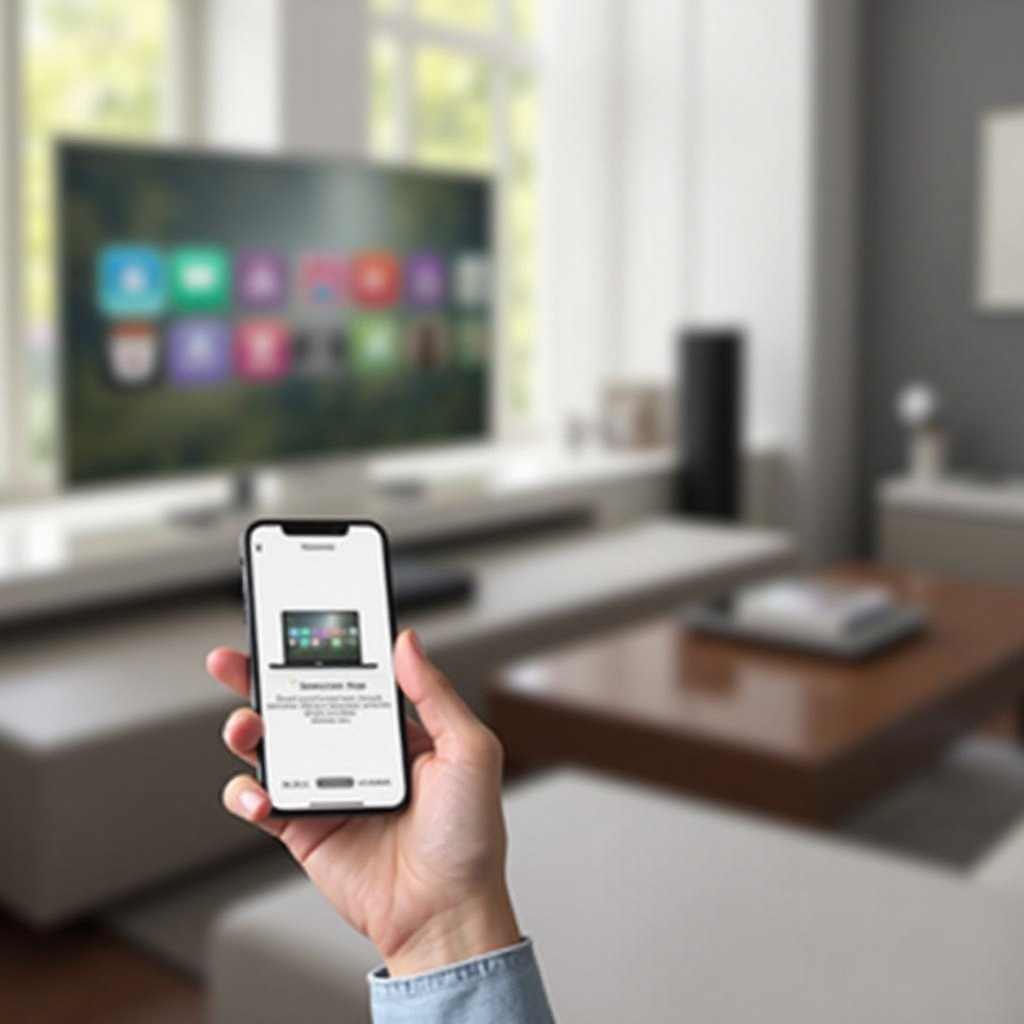
- Using Samsung Smart View: Some Samsung TVs have a built-in Smart View feature. First, download and install the Smart View app from the App Store. Open the app, search for your TV, and follow the on-screen instructions to connect.
- Employing Third-party Apps: Apps like ‘Mirror for Samsung TV’ serve as a practical alternative to AirPlay. Once the app is installed, follow the provided instructions to connect your iPhone to your TV.
- HDMI Adapter Connection: For a wired method, use a Lightning to HDMI adapter. Connect the adapter to your iPhone, and use an HDMI cable to connect it to your TV. Change the TV input to the appropriate HDMI channel to start mirroring.
While alternative methods give you flexibility, understanding how to troubleshoot common issues is crucial for uninterrupted mirroring.
Troubleshooting Common Issues
Even with the best preparations, issues may sometimes arise. Here’s how to address common problems:
- Resolving Connection Problems: Ensure your devices are on the same Wi-Fi network. Restart your devices to refresh the connection.
- Fixing Network-related Lag: A strong Wi-Fi connection is key. Limit interference from other devices for a smoother experience.
- Solving Audio/Video Sync Issues: Ensure your devices are updated to their latest software versions. This can resolve many synchronization problems.
With these troubleshooting tips, you can enjoy a smoother and more reliable screen mirroring experience.
Conclusion
Screen mirroring allows you to enjoy your iPhone’s content on the expansive display of a Samsung Smart TV, whether it be for entertainment or business. Using AirPlay or alternative methods ensures you have flexibility in different scenarios. By carefully preparing your devices and addressing potential issues with troubleshooting, you can ensure a flawless screen mirroring experience.
Frequently Asked Questions
Can I screen mirror without Wi-Fi?
No, a common Wi-Fi connection is necessary for wireless screen mirroring.
What if my TV doesn’t have AirPlay?
Consider using third-party apps or an HDMI adapter as alternatives.
How do I fix a black screen during mirroring?
Restart your devices, check your connections, and ensure both devices are updated.