Introduction
The symbols displayed at the top of your Android phone are gateways to your device’s status and notifications. These icons display vital information like battery level, network strength, and pending notifications. Knowing what these symbols mean allows you to utilize your phone more effectively, ensuring you never miss important updates or warnings.
Understanding Essential Android Status Bar Icons
Your Android phone’s status bar is a concise information hub, offering crucial insights at a glance. Familiarizing yourself with these essential icons is key to knowing what your phone is communicating.
-
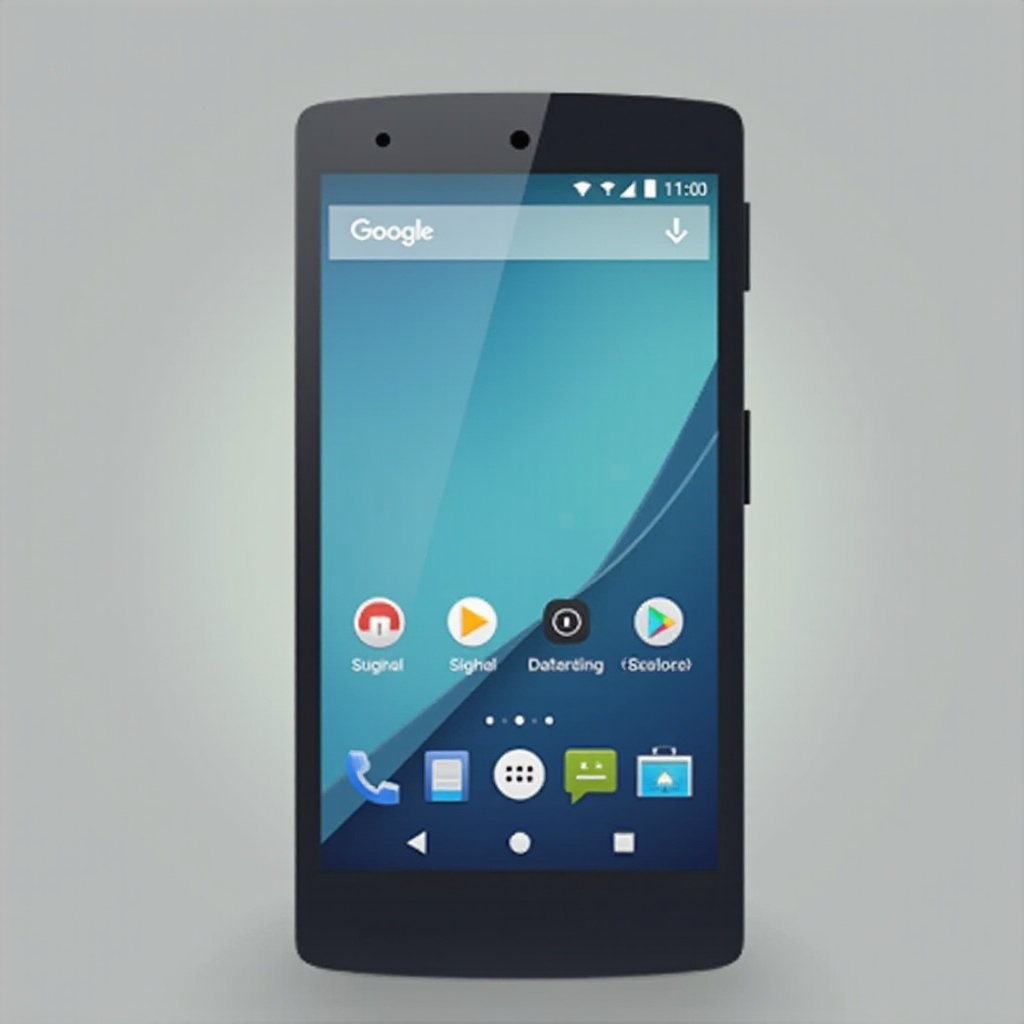
Battery and Charging Indicators: These symbols inform you about your phone’s power status. A lightning bolt usually signifies charging, while a full or partially empty outline depicts battery level.
-
Network Connectivity Symbols: Bars display network strength; more bars mean a stronger connection. Icons such as Wi-Fi, LTE, and 5G signify the type of network you’re using.
-
Notification Alerts: These symbols indicate that you have pending notifications. Icons may represent emails, messages, or other app-specific alerts, often with badges or numbers showing how many notifications are waiting.
Understanding these symbols means you can quickly gauge your phone’s status without digging through settings. This awareness connects seamlessly to managing your notifications for a streamlined experience.
System and App Notifications: What You Need to Know
Beyond basic icons, your Android device uses system and app notifications to communicate updates and alerts. Mastering these can help you prioritize and manage your digital life effectively.
-
System Update and Security Warnings: Crucial for device health, these notifications might appear as a shield or system update packet, signaling you need to act.
-
App-Specific Notifications: Represented by app icons and accompanying badges, these indicate new activity within apps, such as social media alerts or reminders.
Staying on top of these notifications helps you address urgent issues promptly. Moving from understanding to troubleshooting status bar icons becomes the next logical step.
Troubleshooting Android Status Bar Icons
Not every icon will be familiar, sometimes leading to confusion. Identifying and fixing unknown symbols ensures your status bar remains a helpful tool.
-
Identifying Unknown Symbols: When facing unfamiliar icons, check for recent app installations or updates. Apps often update icons with new features or functionalities.
-
Fixing Common Icon Errors: Restart your phone or review app permissions to resolve incorrectly displayed icons.
-
Persistent Icon Solutions: Certain icons might call for specific troubleshooting. Check if an app notification is ‘sticky’ or demands manual dismissal.
Addressing these issues maintains your status bar’s functionality. Next, learn how customization can further optimize your experience.
Customizing and Managing Your Android Status Bar
Customizing your status bar can significantly enhance your interaction with your Android device, reducing clutter and focusing on essential data.
-
Using Built-In Customization Options: Android offers settings to customize which icons appear. Use notification settings to show or hide specific alerts.
-
Third-Party Apps for Better Control: Apps like ‘Status’ or ‘Super Status Bar’ provide superior control over your status bar, including icon size and positioning.
Tailoring your status bar to focus on what matters most facilitates a better user experience. For deeper adjustments, the Android System UI Tuner is a powerful tool.
Advanced Icon Management with Android System UI Tuner
For users interested in fine-tuning their interface, the Android System UI Tuner offers additional settings.
-
Accessing the System UI Tuner: Activate this feature by long-pressing the settings gear in the quick settings menu. A new menu will appear, allowing for advanced customization.
-
Personalized Icon Arrangements: Use the System UI Tuner to rearrange or remove icons. This feature supports a cleaner, personalized status bar appearance.
Checking these advanced settings empowers you to shape your status bar to your exact needs, supplementing the basics you have learned.
Best Practices for a Clutter-Free Status Bar
Keeping a tidy status bar enhances device utility and reduces distractions.
-
Prioritizing Important Notifications: Setting preferences for crucial notification alerts ensures your status bar remains focused and useful.
-
Regular Status Bar Maintenance: Regularly clear outdated notifications. This practice keeps your status bar organized and pertinent.
Following these guidelines ensures that your device operates smoothly and remains easy to manage, providing a user-friendly experience.
Conclusion
Decoding the symbols at the top of your Android phone and learning how to manage them enhances your interaction with the device. Customizing your status bar and mastering notification controls streamlines your user experience, facilitating efficient device management and improved productivity.
Frequently Asked Questions
What does the small ‘N’ icon mean on my Android’s status bar?
The ‘N’ icon indicates NFC (Near Field Communication) is active, allowing your phone to exchange data with other NFC devices.
How can I remove persistent icons from my status bar?
To remove persistent icons, check the associated app for manual dismissal or adjust settings to undisclose notifications.
Why do Android status bar symbols differ between manufacturers?
Manufacturers customize Android interfaces, leading to variations in status bar symbols to best fit their branding and features.